
Labels are designed to be fully customizable, giving you the flexibility to create and manage projects according to your specifications. These can be added and configured on the fly, directly from the desired section, without the need for complex prior configurations.
How to mark and sort projects with custom labels:
- Navigating to orders: To organize projects based on priorities (for example, Urgent, High Priority, etc.), access the Sales - Orders section. Here you will have a list of all orders/projects.
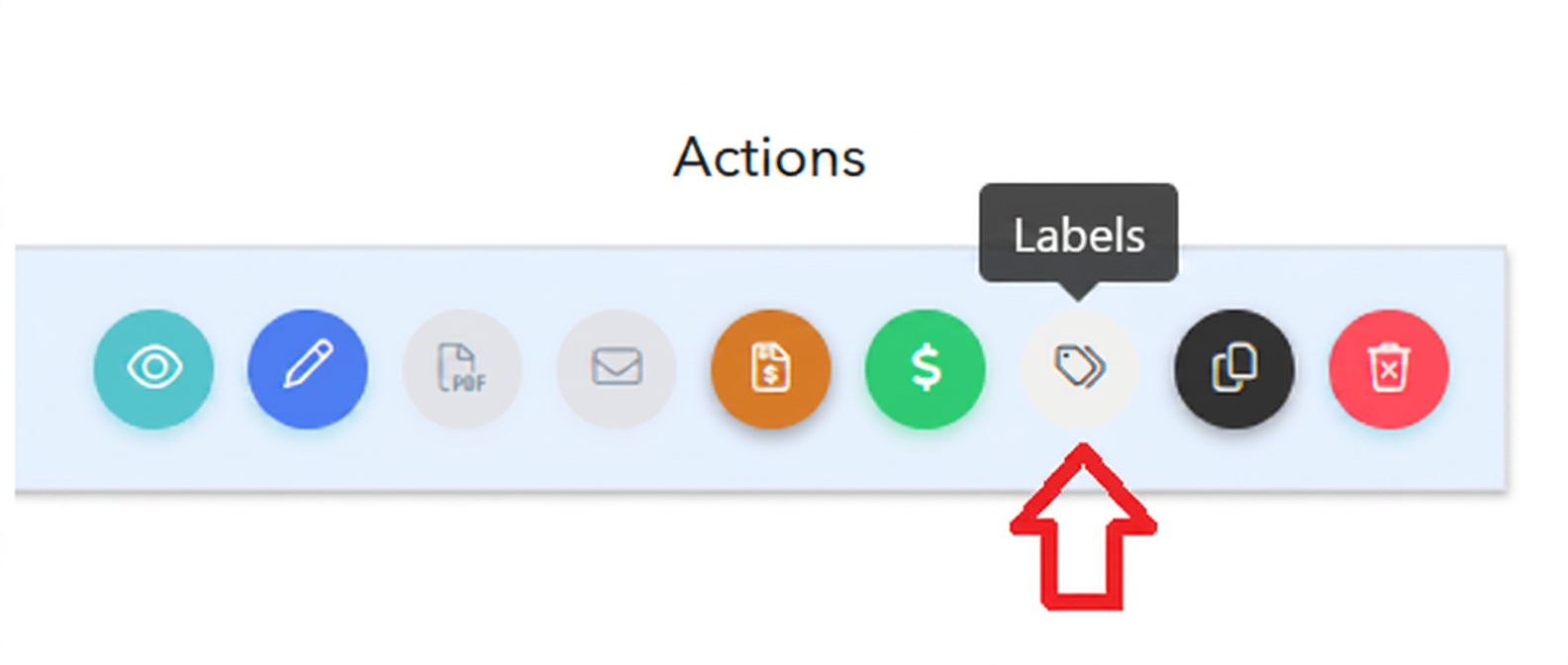
- Adding a label: Next to each order, in the Actions column, you will notice a symbol dedicated to labels. When you click this symbol, a window will open where you have two options:
- Select an existing label: If the desired labels have already been created, you can select them directly from the displayed list.
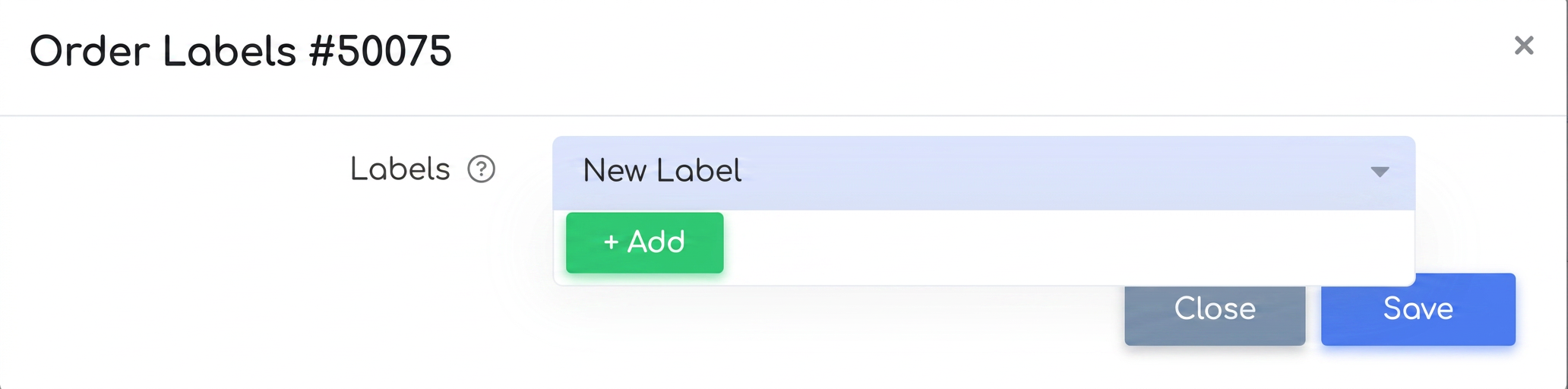
- Creating a new label: In case a specific label does not exist, you can create a new one on the spot. Start typing the name of the desired label (e.g., Urgent) and you will see an Add button appear. Press this button to quickly save the new label.
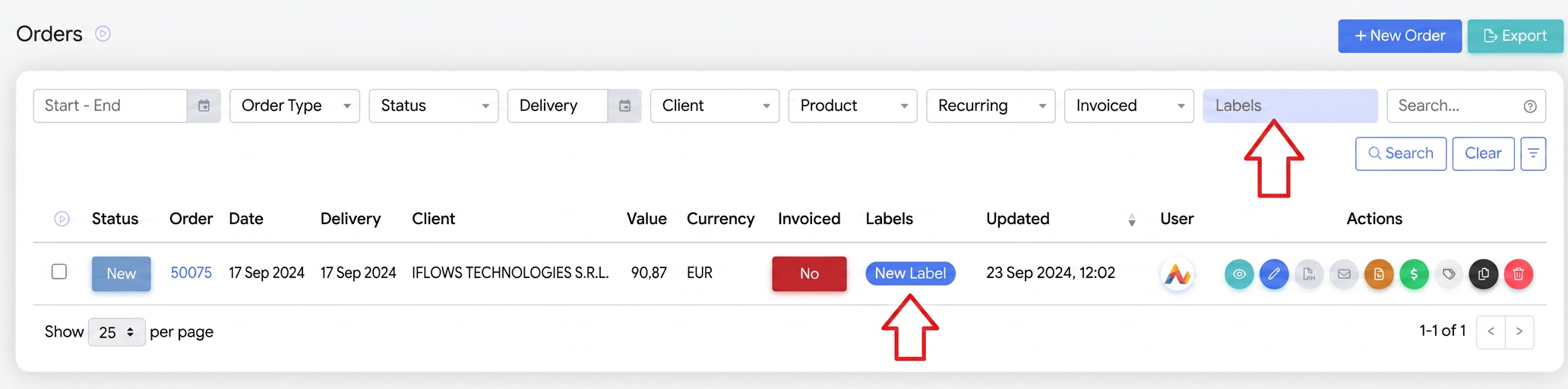
- Displaying labels: After adding a label, it will be immediately visible in the Labels column next to the respective order.
- Sorting and filtering by labels: In the Workflow section, labels added to orders become a useful organizational tool. You can filter projects by the applied labels so that you only work on those orders that have a certain priority (e.g., Urgent, High Priority, etc.).
- Real-time updates: Labels can be modified or deleted at any time, and the changes are immediately visible both in the order list and in the workflow. This is done in the same way as the initial configuration.
Note: If you want to permanently delete a label, you can do so by accessing Settings - Sales - Orders - Labels. From here, you have the possibility to manage all previously created labels and delete them permanently if they are no longer needed for organizing orders.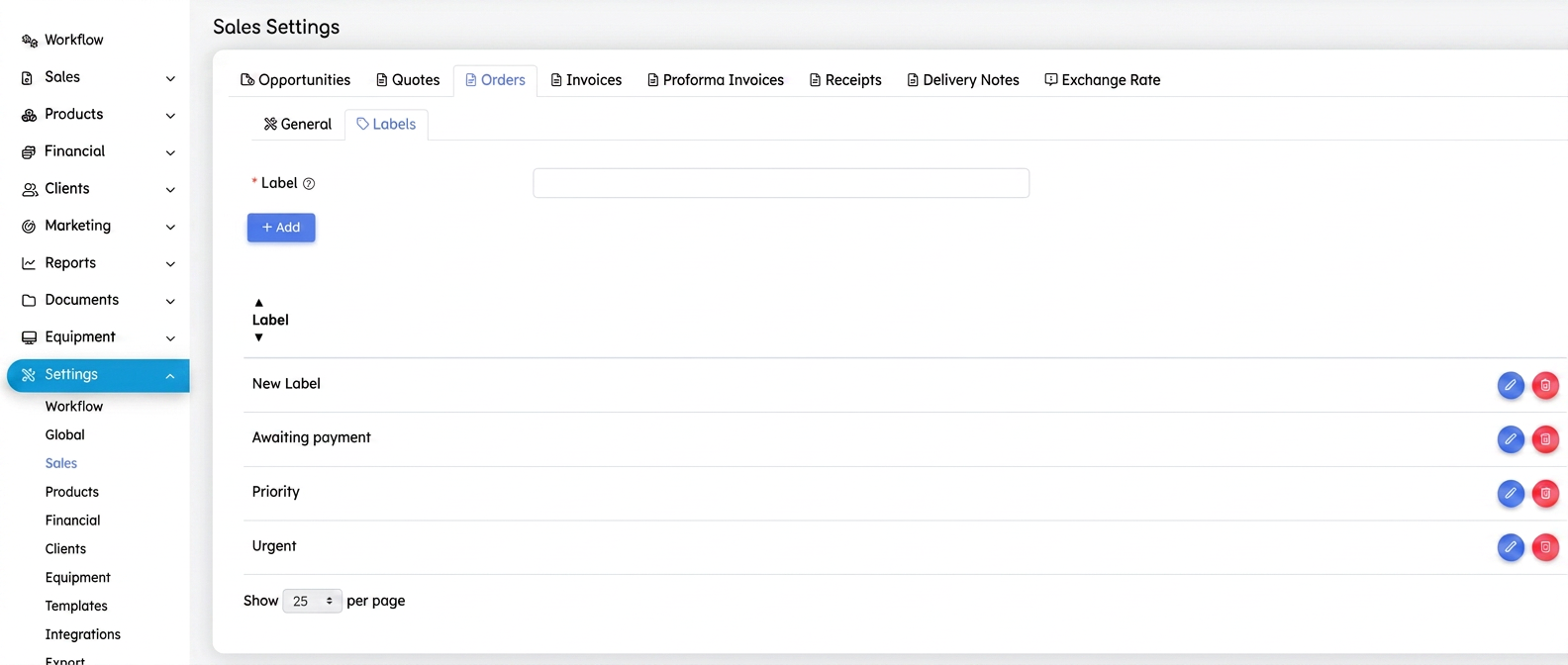
Labels in iflows are not limited to orders; they can also be used in other sections such as Offers, Products, Opportunities or Customers. These offer you a flexible way to organize and manage important information across all aspects of the business. For example, to efficiently segment customers using labels, we recommend watching the video tutorial: How to Segment Customers with Labels.