
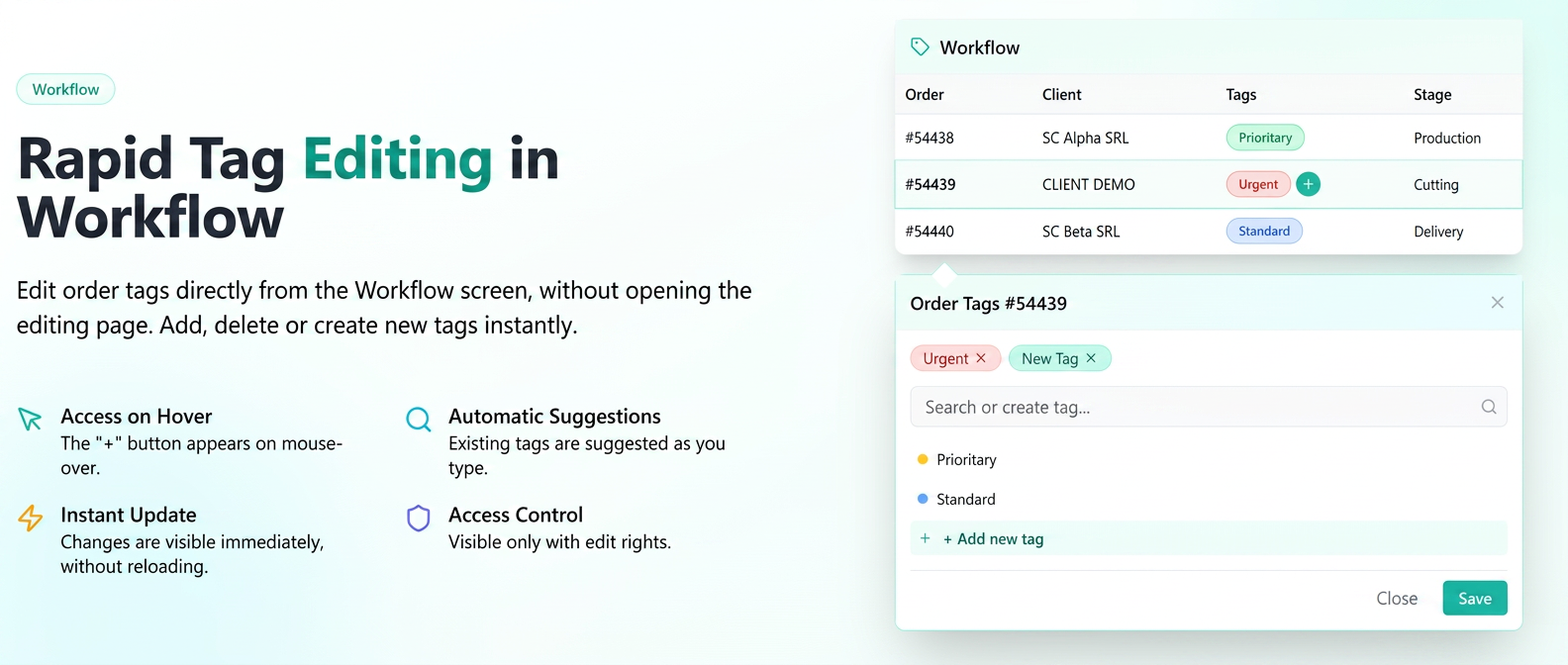
Order labels can be modified directly from the Workflow screen without opening the order editing page.
News and features
- A "+" button appears when hovering over the Labels column of an order in the Workflow.
- Clicking on "+" opens a pop-up with the labels associated with the order.
- Existing labels can be deleted directly from the pop-up by clicking on "x".
- When typing in the label field, the system suggests existing labels from the database.
- New labels can be created directly from the same pop-up.
How to use
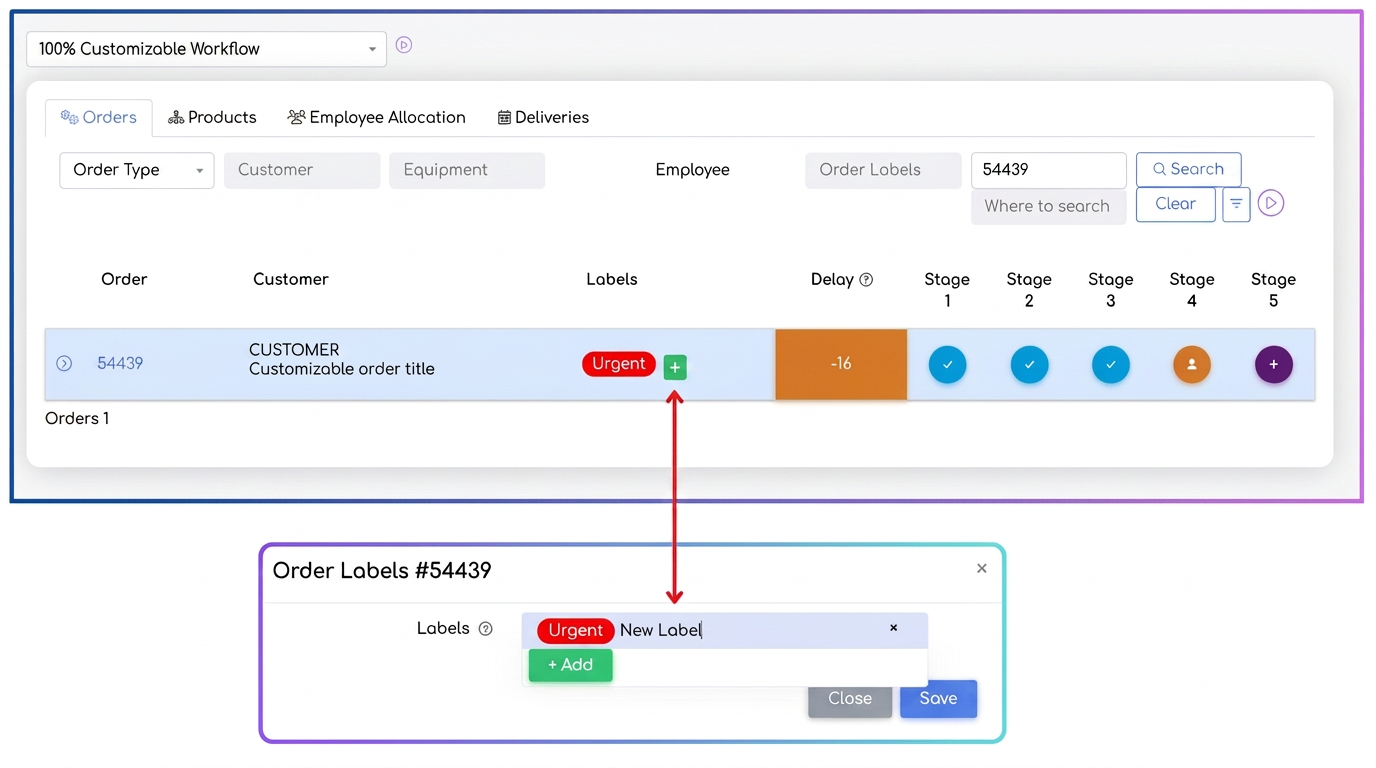
- In the Workflow screen, place the mouse over the Labels column of the desired order.
- Click on the "+" button that appeared.
- Add, select, or delete labels as needed.
- Save.
In the workflow, after saving from the modal, the labels in the table are updated on the page without reloading the entire page: changes are visible immediately in the list.
Note: The button is displayed only if the edit order permission exists. Without this permission, you can see the labels but not the + button.
Related articles
Complete Order Exclusion from WorkflowTutorialsQuick access to the "Super Product" file from the WorkflowTutorialsAre the labels from the product profile visible on the generated invoice? And what do these labels represent? I sell electronics.ForumColor Picker for LabelsTutorialsSorting and marking projects with labels, I haven't found how to do it.Forum