
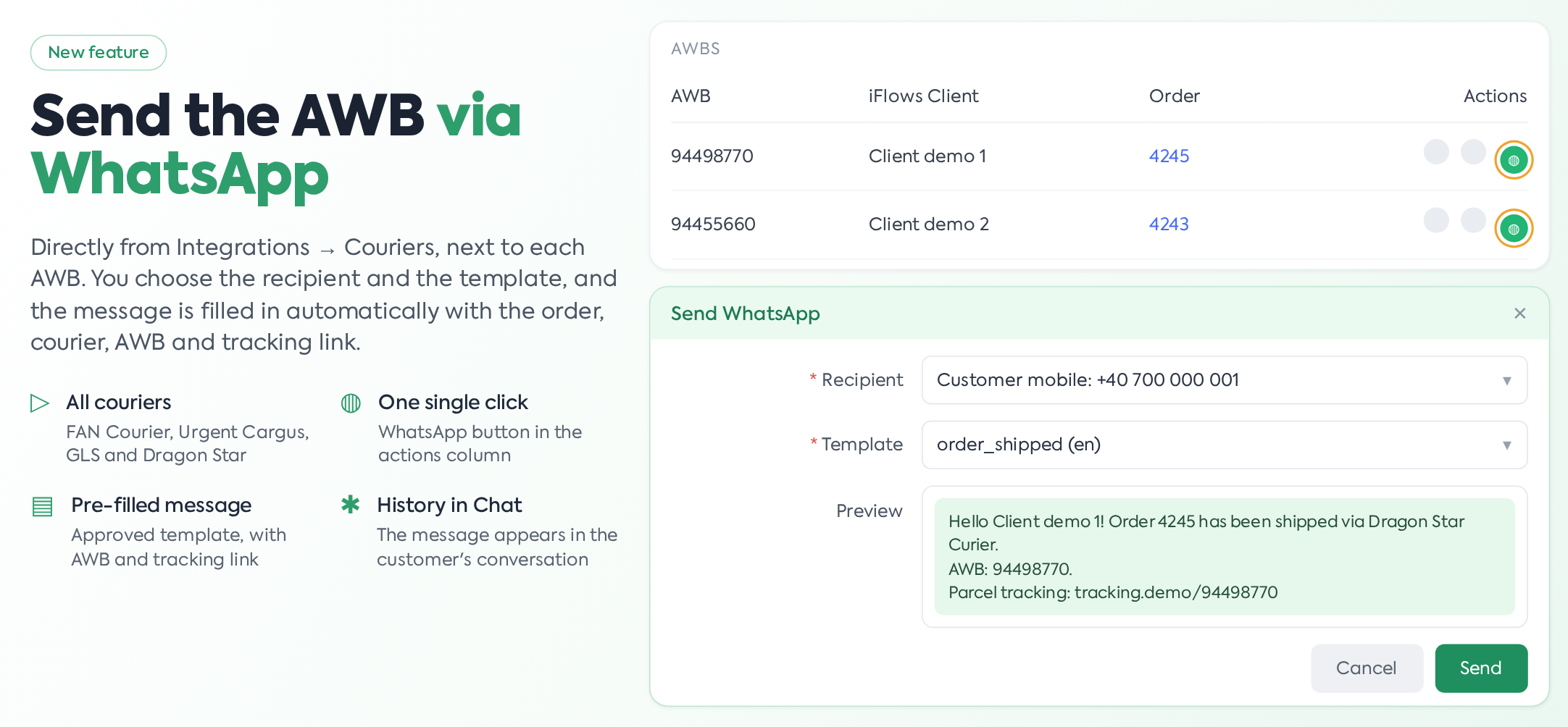
In the courier integrations — FAN Courier, Urgent Cargus, GLS, and Dragon Star — a button has been added to send the AWB to the client via WhatsApp. You can find it in , next to each AWB, in the actions column.

The AWB list, with the WhatsApp button in the actions column.
Important: In order to send, the WhatsApp integration must be connected and you must have a template created and approved (for example, an Orders type template with shipment details). Templates are managed from the WhatsApp integration and go through the Meta approval process — without an approved template, the message cannot be sent. The button only appears for AWBs linked to a client in the platform. In the sending window, only approved Orders type templates whose name contains "finalizare_comanda" (order_finalization) appear — this is the standard shipment template. If the template was renamed differently in Meta, the template list remains empty, even if approved templates exist. The button only appears on rows that have a completed AWB and are linked to an order in the platform.
2. How to use it
- courier sub-section (FAN Courier, GLS, Dragon Star, or Urgent Cargus).
- On the AWB row, press the green WhatsApp button.
- In the Send WhatsApp window, choose the recipient (client's number or a contact person) and the template. The recipient list contains the client's primary mobile number, the other mobile number from their profile, and the mobile numbers of contact persons; landline numbers do not appear. The number must be written with the country prefix — a number saved as 07… will be rejected upon sending.
- Check the message in Preview — it is automatically filled with the order number, courier, AWB, and tracking link — then press Send. The tracking link is built from the address configured for the courier in , the AWB tracking field; if no address is filled in there, the link in the message remains empty.
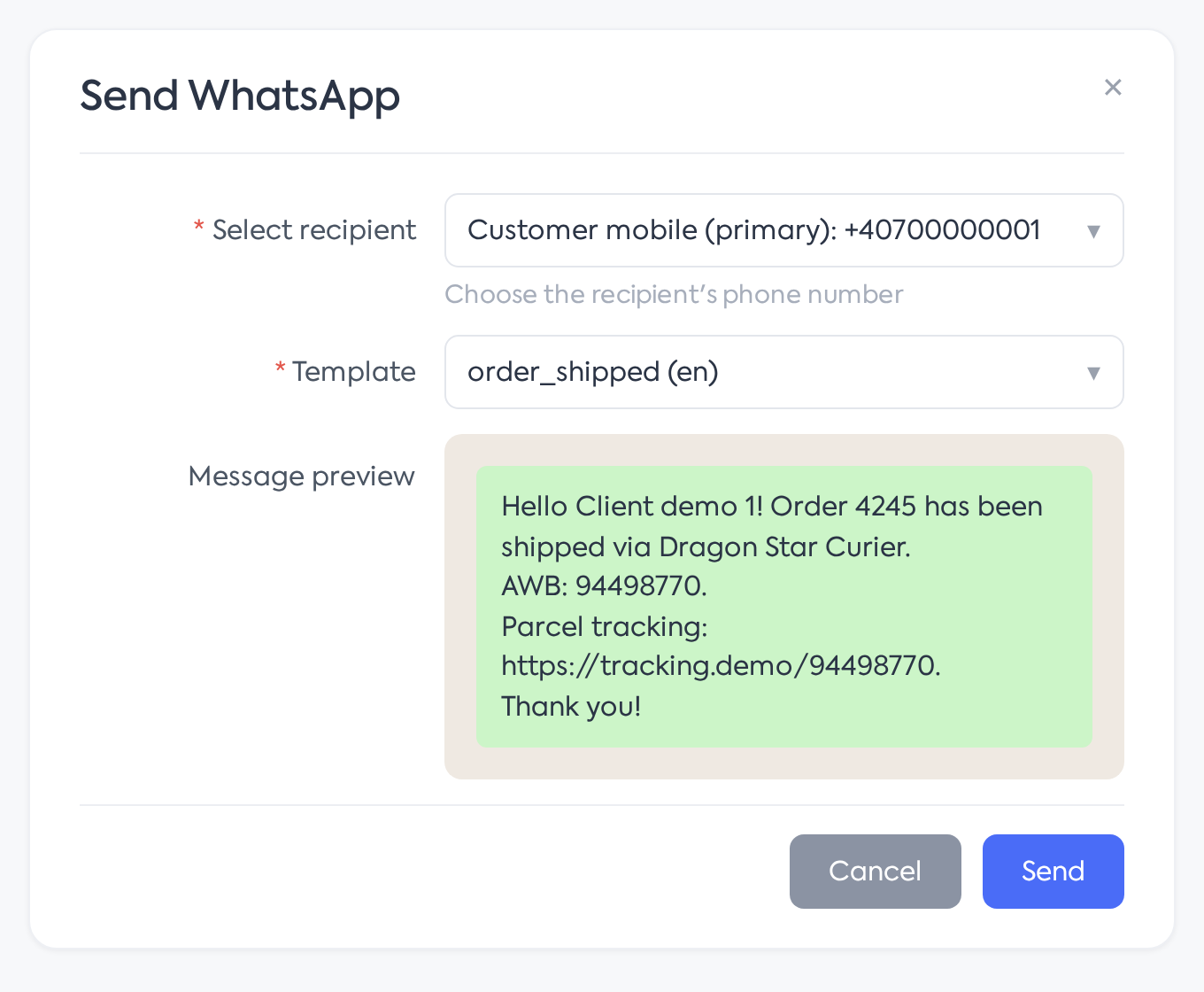
The Send WhatsApp window, with the recipient, template, and message preview.
The sent message also appears in the client's conversation in , like any other message sent from the platform.
3. Keep in mind
A few practical aspects:
- The message is sent as an approved template, so it does not depend on the 24-hour conversation window: it works even if the client hasn't written to you recently.
- There is no check for duplicate sends: the same AWB can be sent multiple times.
- What has been sent can be seen in the order file, in the Communications section (who sent it, when, to which number, and if the message was read), as well as in the , where a conversation is automatically created if it didn't exist.
- If the workflow already automatically sends a shipment message upon order completion, pressing the button will result in two messages to the same client.
4. Permissions
The button and the actual sending require the "WhatsApp Messages" permission (viewing right) under the Integrations category. For the message preview to load, the "WhatsApp Templates" permission is also needed; without it, sending works, but an error appears instead of the preview. Users with administrator rights have access by default.