
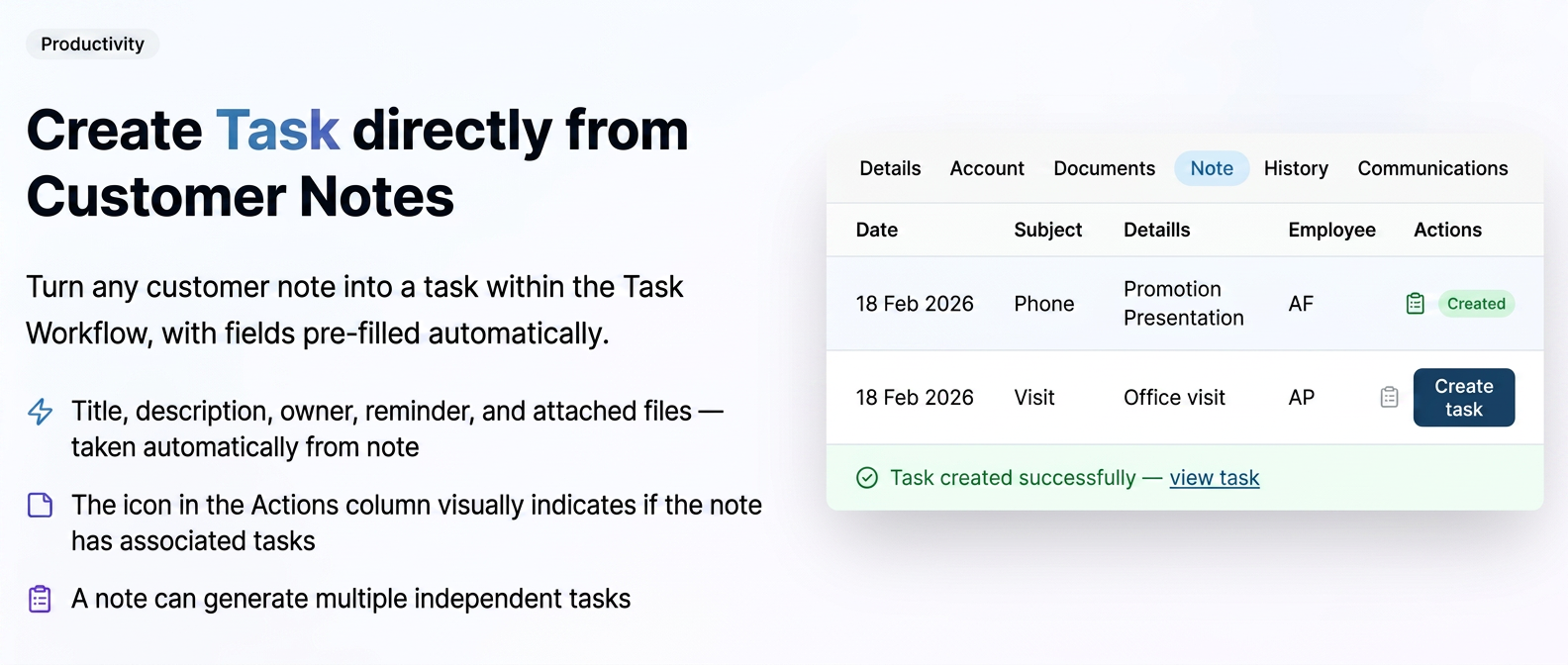
In a client's Notes tab, each note has a dedicated button for quickly transforming it into a task within the Task Flow.
- "Create task" button in the Actions column, located between the Edit and Delete buttons.
- The add task pop-up opens with fields automatically pre-filled from the note (title, description, responsible person, reminder, attached files).
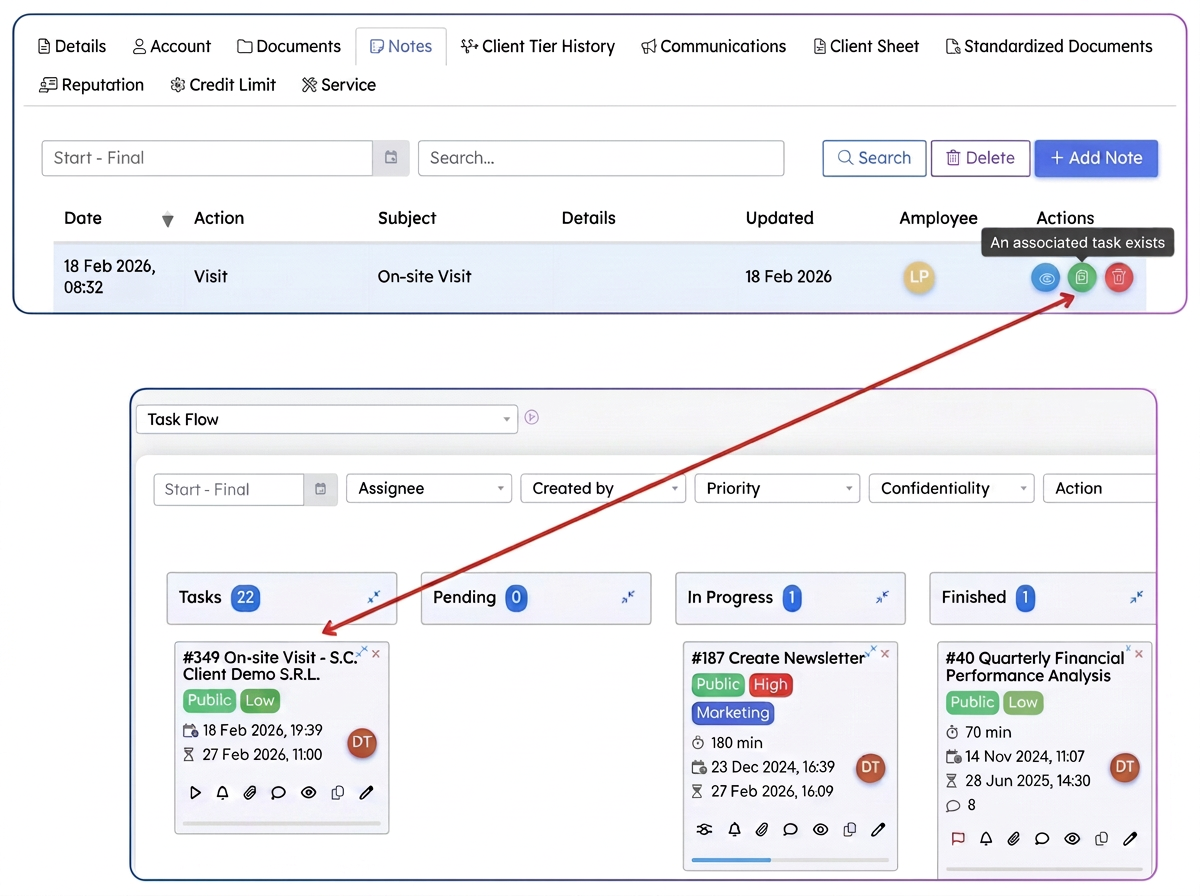
- The icon indicates the note's status: gray = no associated task, green = at least one task exists.
- Hovering over the green icon displays the tooltip "Associated task exists".
- A single note can generate multiple independent tasks.
- After saving, a confirmation message appears with a direct link to the created task.
- The button is only visible to users with task creation permissions.
How to use
- Go to .
- Locate the desired note and click the "Create task" icon in the Actions column.
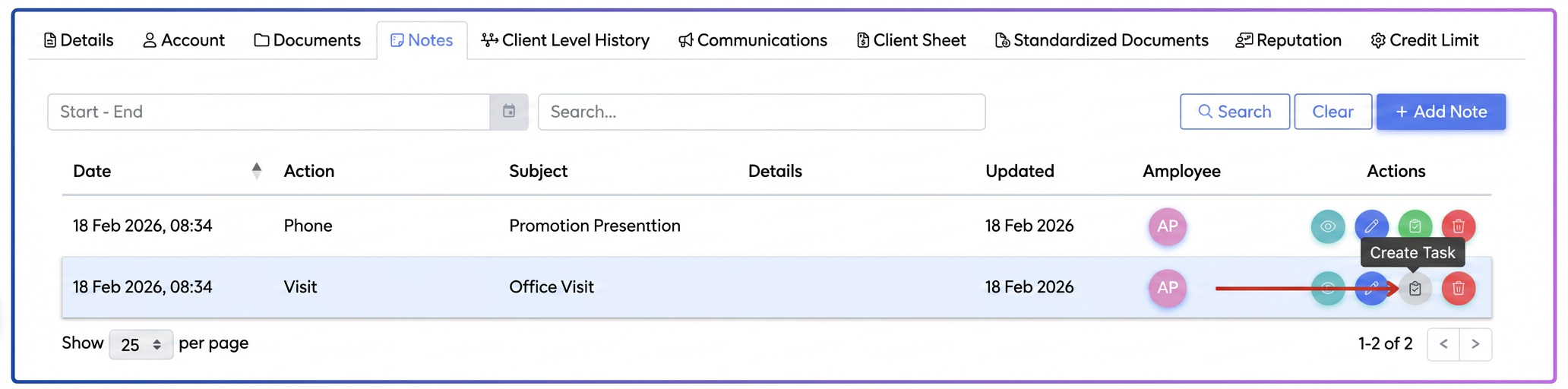
- The pop-up opens with data pre-filled from the note. If you have multiple task flows, the system will ask you to choose the flow where this new task will be loaded.
- Check and modify the fields if necessary, then save.
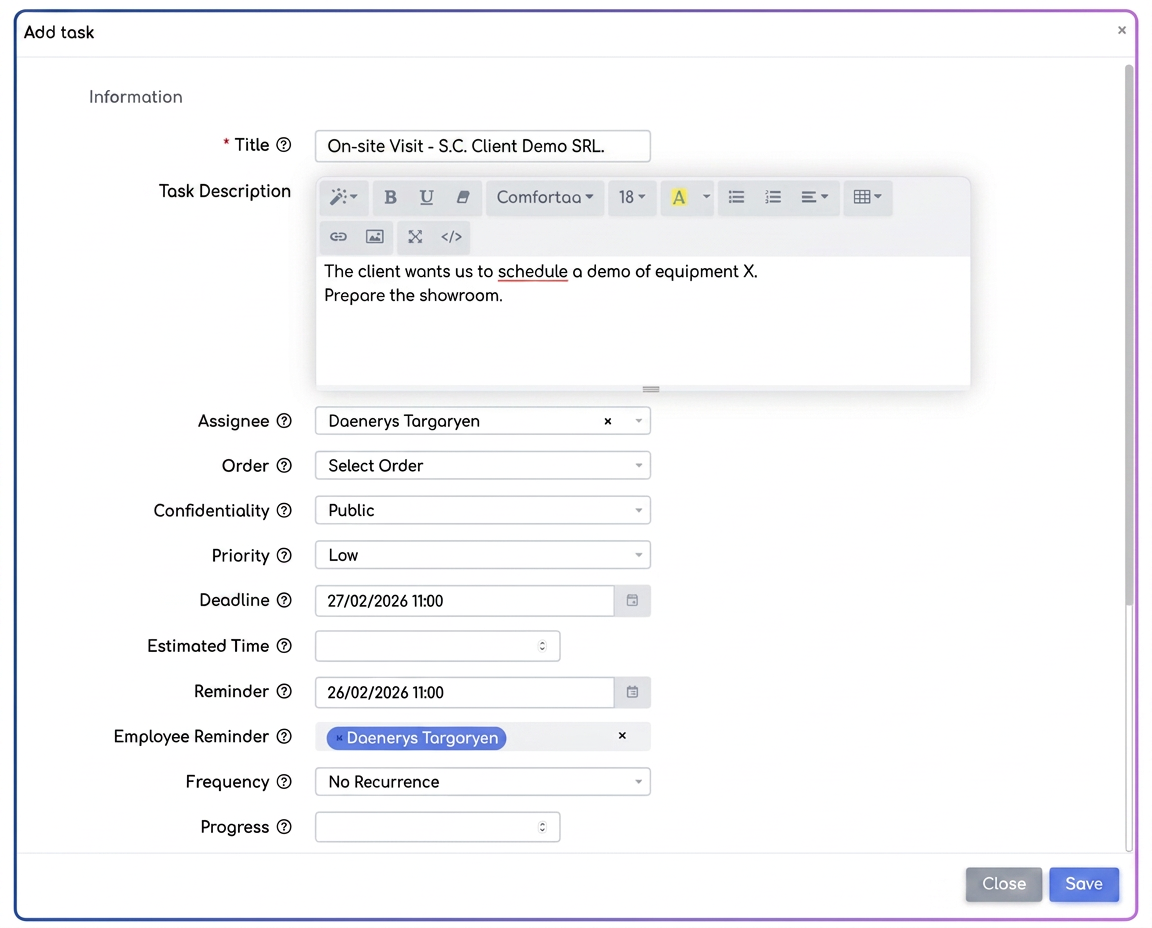
Automatically pre-filled fields:
- Title: Note Subject + Client Name
- Description: Note content
- Responsible: Current user
- Reminder and files: automatically retrieved if they exist on the note
- Associated documents: automatically retrieved if they exist on the note
Related articles
Task WorkflowTutorialsSupplier orders — requirements from client ordersTutorialsThe "Last Note" column in the Clients moduleTutorialsI am no longer sure if I sent the offer to the client directly from the system or not. How can I find out?ForumProducts — importing and exporting the product catalogue from an Excel file (Reconfiguration)Tutorials