
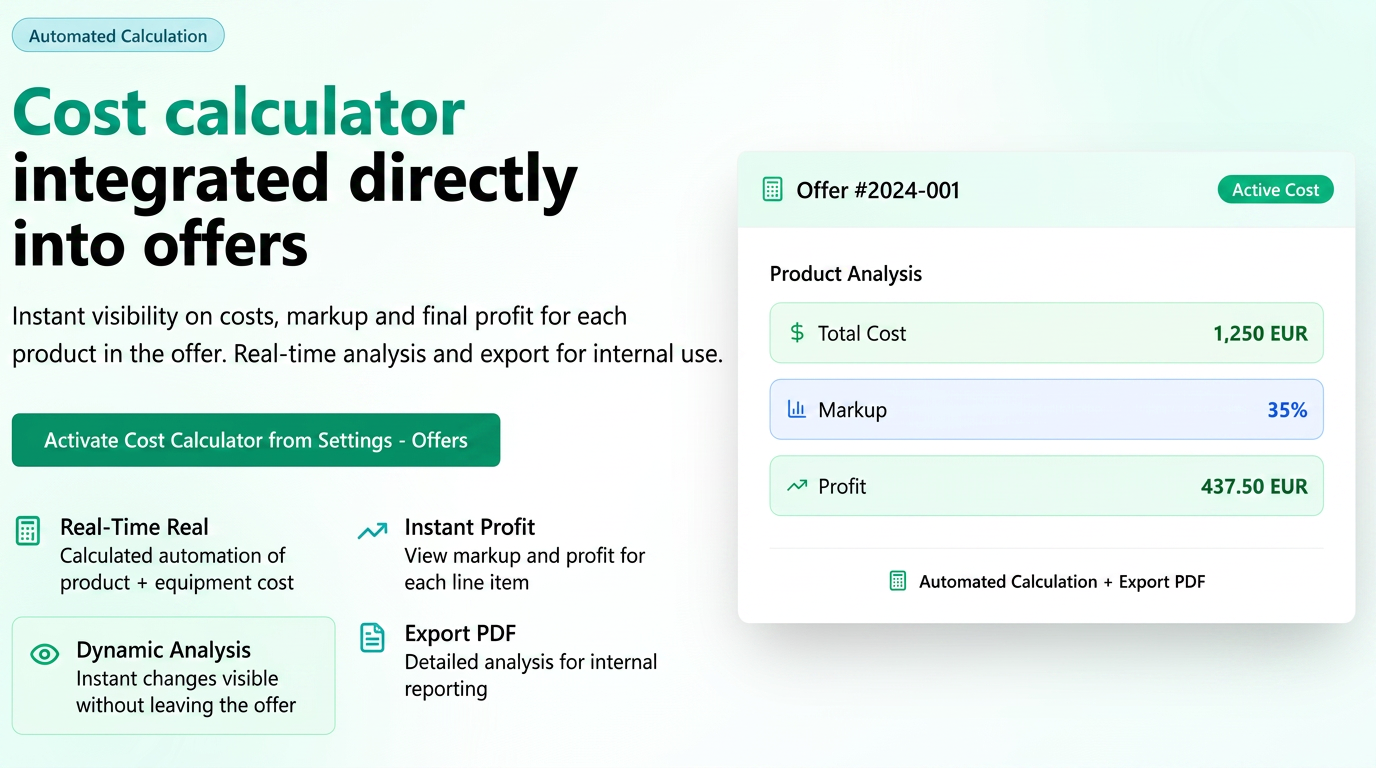
This feature integrates a cost calculator directly into the quote creation screen. For each added product, you have instant visibility over costs, markup, and final profit.
Step-by-step user guide
1. Activating the functionality
To display cost and profit columns in quotes, the function must first be activated from the general settings.
- Navigate in the main menu to Settings > Sales.
- Access the Quotes tab.
- Enable the Automatic Cost Calculation option (the toggle must be green).
- Press the Save button.
Once activated, the functionality will be available in all quotes, both when creating new ones and when editing existing ones.
2. Profitability analysis while creating the quote
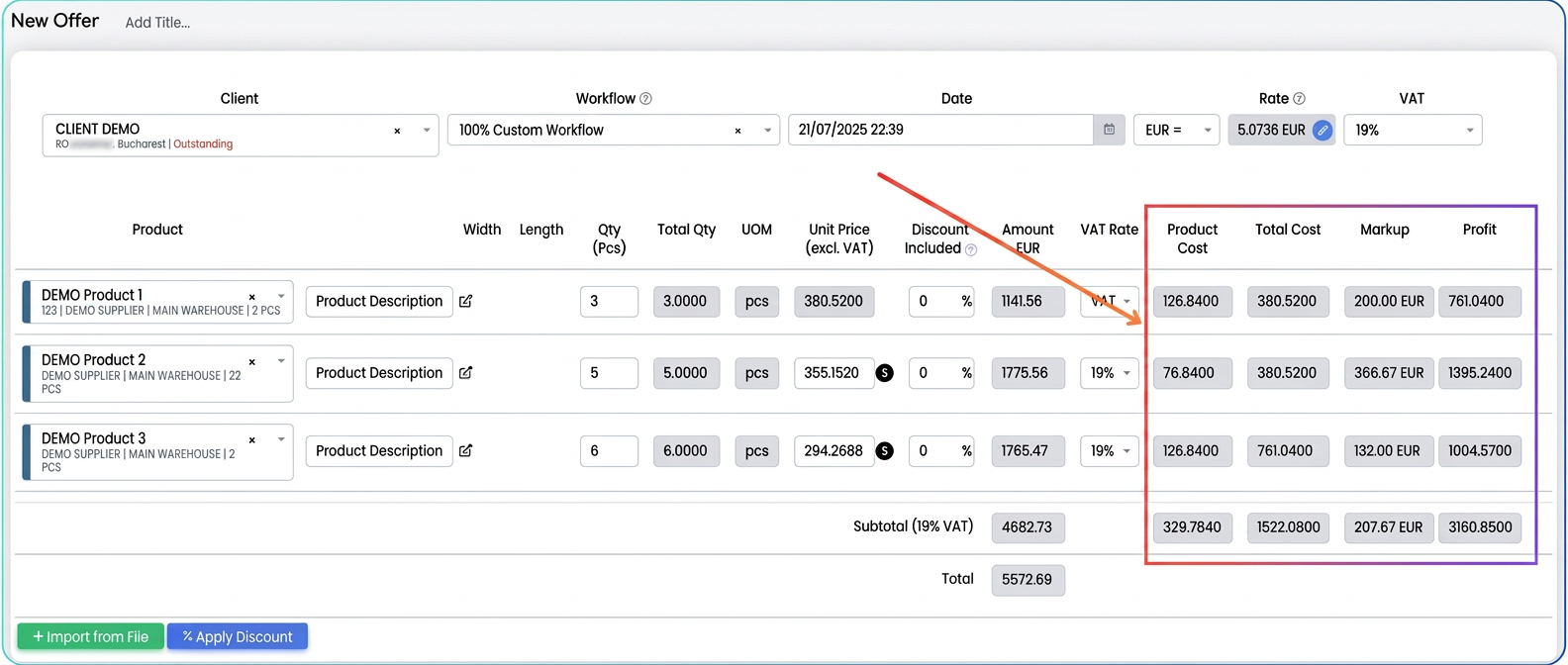
When you add products to a quote, the platform will automatically display the new financial columns, giving you a complete picture. Here is how to interpret them:
- Product Cost: Represents the acquisition or production cost of a single unit of the product.
- Total Cost: Reflects the complete cost for the entire line in the quote. This is automatically calculated including all elements:
Total Cost = (Product Cost × Quantity) + Equipment Cost (if applicable) - Associated Equipment/Operations
Thus, you instantly see the real cost, which includes both the base product and the labor or machinery used, if applicable. - Markup (%): The percentage profit margin.
- Profit: The final amount, in absolute value, that you earn on that product line after covering all costs.
Useful tip: For an even more detailed analysis, hover your mouse cursor over the value in the Profit column to see the unit profit (gain per single piece of product) displayed.
This dynamic view allows you to modify the price, quantity, markup, or equipment and immediately see the impact on profit without leaving the quote screen.
3. Exporting the cost analysis for internal use
After completing the quote, you can quickly generate a detailed cost analysis, perfect for internal reporting or archiving.
- From the view of the saved quote, access the Actions menu.
- Select the Export Quote Costs option.
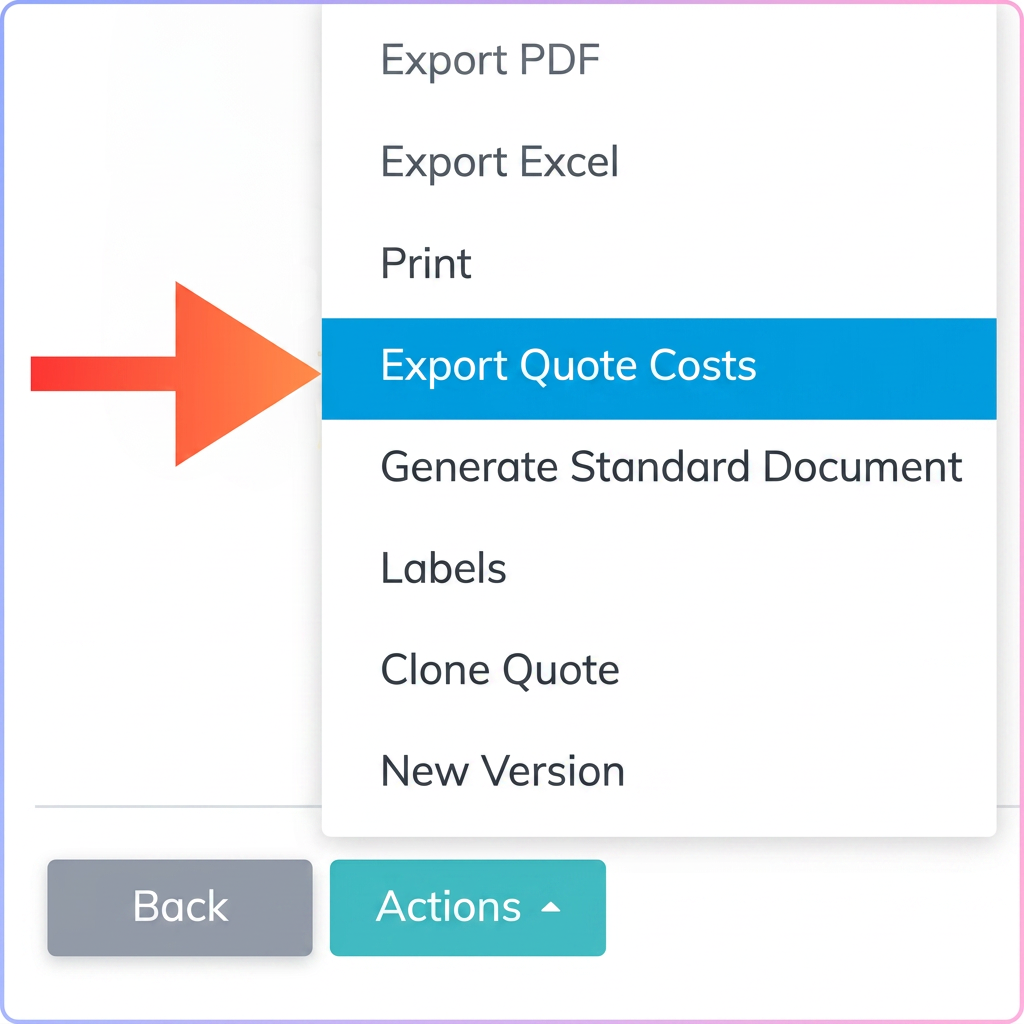
- The platform will generate a PDF document that centralizes all financial data: product costs, equipment costs, total costs, markup, and profit for each line in the quote.