Default Currency for Order and Invoice
In the Settings -> Global -> "Company" tab section, you will find two fields:
- Default Order Currency
- Default Invoice Currency
Let's analyze each one in detail.

- Default Order Currency: A Strategic Decision
This is the field that requires the most attention. It sets the currency in which all sales orders will be recorded internally in iflows (the sales order is an internal document). This is a global setting and cannot be changed on a case-by-case basis for a specific order.
Why is it important? The sales order is the central internal document. Based on it, procurement is handled, execution is planned, and the final invoice is generated. Its currency will influence all sales and profitability reports.
Answer the following question: What is the reference currency in internal discussions regarding orders?
Quotations Flexibility vs. Order Rigidity:
- Quotations are flexible: Even if the default currency is set to EUR, you can manually change the currency for any quotation to EUR (and vice versa) before saving it.
- Orders are rigid: All orders will automatically inherit the currency set here. If an order is generated from a quotation in a different currency, the system will perform the conversion automatically.
Scenario A: When to choose EUR as the Default Order Currency
This option is ideal for companies operating in a business environment oriented towards Euro prices, even if they sell on the local market.
Company Profile:
- Product prices and sales strategies are fundamentally conceived in EUR (e.g., raw materials are imported/suppliers provide price lists in EUR).
- Most strategic clients or B2B transactions are negotiated and agreed in EUR.
- Profitability per order analysis is more relevant if done directly in EUR.
- How it works:
- Most quotations and ALL orders will be expressed in EUR.
- What do you do if a client requests a quotation in EUR (e.g., public institutions)?
- Create the Quotation and manually change the currency to EUR. The system will use the BNR (National Bank of Romania) exchange rate (or your bank's rate depending on settings) from that day to calculate the value.
- When you convert the quotation into an Order, the system will take the EUR value and automatically convert it to EUR, recording the internal order in the set default currency (EUR).
- Finally, generate the Invoice, which will be in EUR.
Scenario B: When to choose EUR as the Default Order Currency
Company Profile:
- The main market is for B2C clients (end consumers).
- Price strategy and price lists are conceived and expressed directly in EUR.
- The sales and operational teams think and communicate order values predominantly in EUR.
- Even if EUR transactions exist, they are considered exceptions, not the rule.
- How it works:
- All internal orders will be in EUR.
- If you create a quotation in EUR, when generating the order, the system will perform the conversion and record it in EUR.
Default Invoice Currency
This field defines the predefined currency for final documents: Invoices, Delivery Notes, and Proformas.
- Rule: For companies registered in Romania, this setting is always EUR, according to the legislation in force.
- Impact: Regardless of the currency in which you quoted or recorded the internal order, at the time of generating the invoice to a Romanian client, iflows will create it by default in EUR.
Although we established that the default invoicing currency in Romania is EUR, iflows gives you the flexibility to issue invoices manually in other currencies as well, such as EUR or USD.
How to issue an invoice in another currency?
Even if the Default Invoice Currency is set to EUR, you can change the currency directly in the invoicing document.
- Creating the Invoice: Generate an invoice from an order.
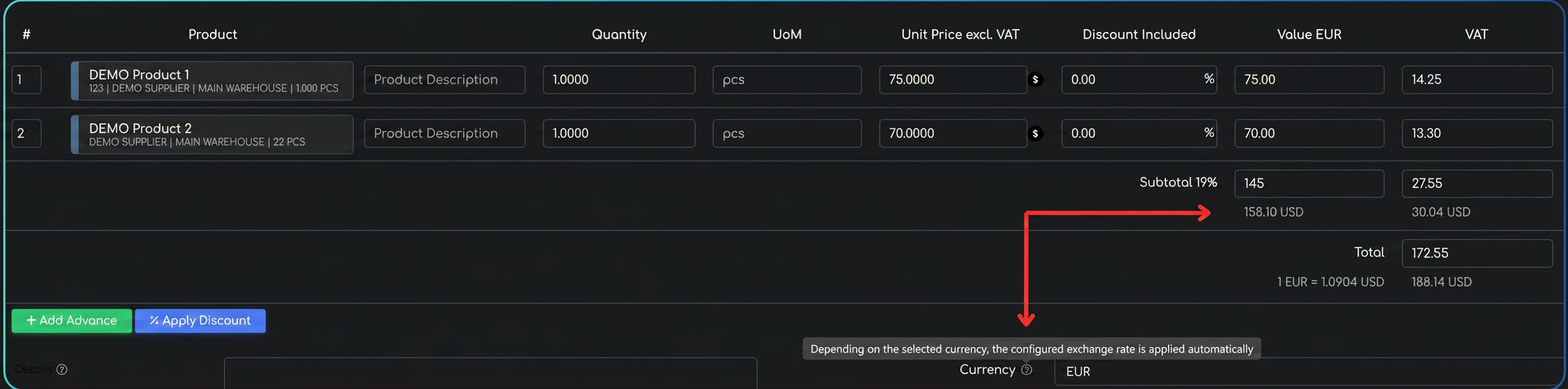
- Selecting the Currency: In the totals section of the invoice, you will find a field called Currency. Here you can manually change from EUR to EUR, USD, or another configured currency.
Total Transparency: Dual Value Display
Once you have selected another currency (for example, EUR), you will notice a key aspect directly on the invoice editing screen:
- Dual Currency Values: The system will automatically display both the values in the chosen currency (EUR) and their equivalent in EUR.
- Exchange Rate Visibility: The exchange rate used for conversion is clearly displayed in the totals area (for example, 1 EUR = 5.0736 EUR), providing complete transparency regarding the calculation.