
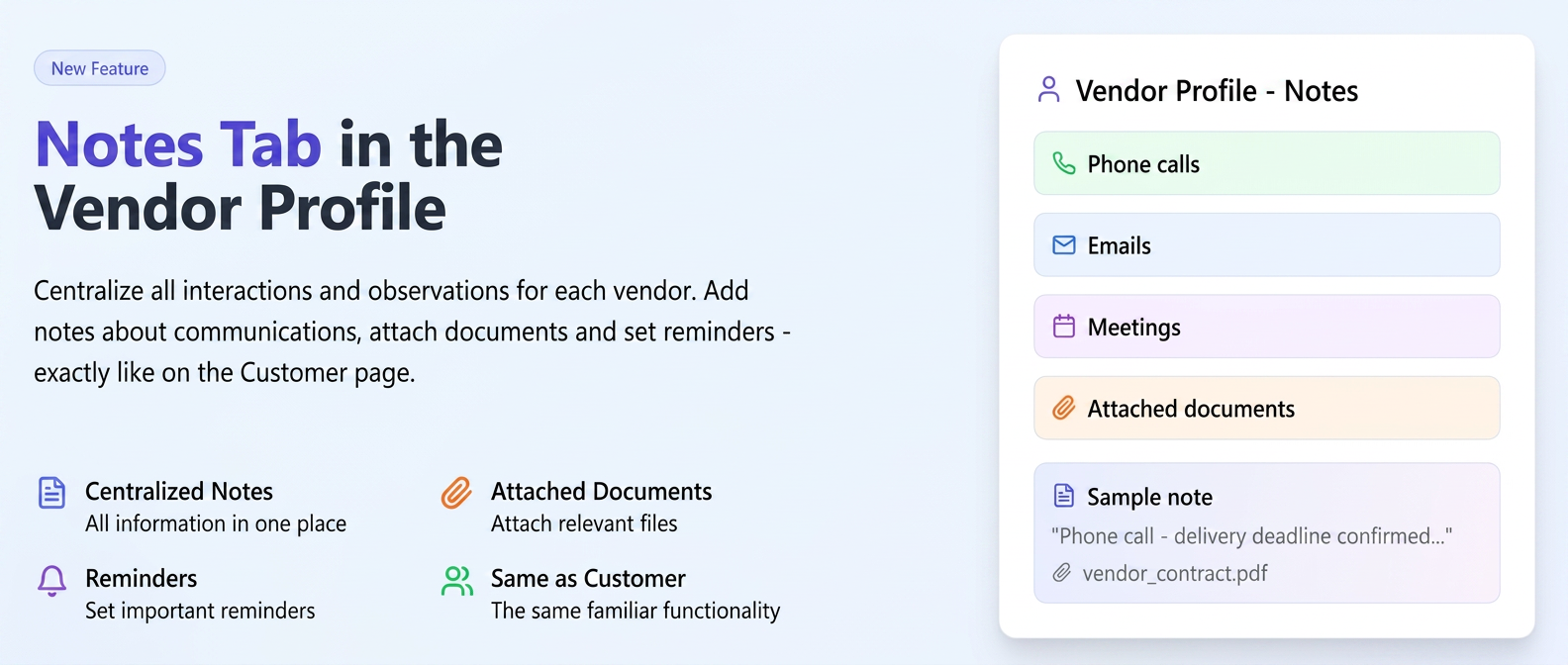
This feature allows you to centralize and manage all specific interactions and observations for each individual vendor. You can add notes about phone calls, emails, meetings, or any other relevant information, with the ability to attach documents and set reminders. The functionality is similar to the one existing on the Customer page.
To add a note to a vendor, follow the steps below:
- Navigate in the left menu to Financial > Vendors.
- On the page that opens, ensure you have selected the Vendors tab.
- Identify the desired vendor in the list and click on the View icon (eye) in the Actions column.
- In the vendor details page, access the new Notes tab.
- Click on the + Add Note button.
- Fill in the fields in the window that appears:
- Action: Choose the interaction type (e.g., Email, Phone).
- Subject: Enter a concise title for the note.
- Content: Add the details of the observation.
- Documents: Upload relevant files, if applicable.
- Reminder: Enable the option if you wish to set a reminder. You can choose the notification date and the employee who will receive the alert.
- Finally, click the Save button.
All saved notes will be visible in the Notes tab of the respective vendor, for clear record-keeping and quick access to history.