
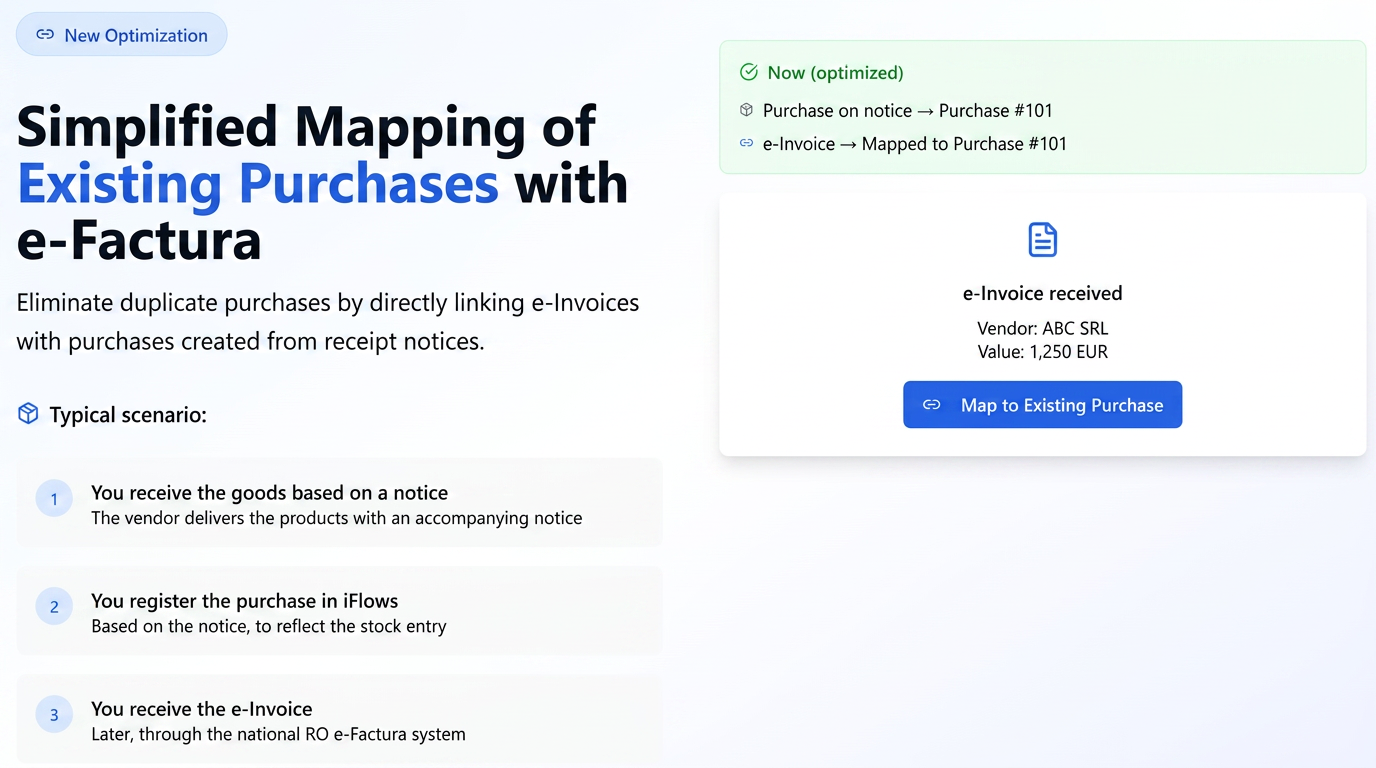
The functionality for mapping e-Factura (electronic invoices) to existing purchases in iFlows is designed to streamline the reconciliation process between electronic invoices received through the national system (e-Factura) and purchase documents already registered in the platform. This is particularly useful in scenarios where goods are received and recorded (for example, based on a delivery note) before the electronic tax invoice is received.
Key features of this functionality:
-
"Map Purchase" Button:
-
Location: In the Financial -> Purchases section, e-Factura tab.
-
Function: For each listed e-Factura, a dedicated button named "Map Purchase" is available in the "Actions" column. This button allows for the direct connection of the respective e-Factura to a purchase already existing in the iFlows system.
-
-
Automatic Status Update for e-Factura:
-
Consequence: After successfully mapping an e-Factura to an existing purchase, the e-Factura status will automatically change to "Purchase" (or "Paid", depending on the exact interface terminology).
-
Visual Representation: The "Purchase" (or "Paid") status is marked in green for quick identification.
-
-
Action List Management for e-Factura:
-
Behavior: Once an e-Factura has been mapped to a purchase, the "Create Purchase" button (which allowed generating a new purchase based on the e-Factura) will be removed from the action list for that specific e-Factura.
-
Purpose: To prevent the accidental creation of duplicate purchases for the same transaction.
-
-
Data Accuracy Verification and Alerting:
-
Mechanism: During the mapping process, if the system detects that the supplier specified on the e-Factura differs from the supplier registered on the selected purchase, an alert will be displayed.
-
Benefit: This check helps prevent erroneous mappings and maintains data integrity, similar to the existing alerting functionality when linking orders with different customers in the Offers section.
-
-
Visual Consistency of e-Factura Statuses:
-
"Downloaded" Status: e-Factura documents that have been imported into the system but not yet processed or mapped are marked in orange.
-
"Purchase" / "Paid" Status: e-Factura documents that have been mapped to a purchase are marked in green.
-
The Process of Mapping an e-Factura to an Existing Purchase:
-
Navigate to the Financial -> Purchases section.
-
Select the e-Factura tab to view the list of received electronic invoices.
-
Identify the e-Factura you wish to process and map.
-
Next to the respective e-Factura, in the "Actions" column, click the "Map Purchase" button/icon.
-
In the pop-up window that opens:
-
Use the search field to find the existing purchase you want to link (for example, by searching for the purchase document number or other relevant criteria).
-
Select the correct purchase from the results list.
-
-
Click the "Map" button.
-
If the suppliers on the e-Factura and the selected purchase do not match, you will be notified via an alert. You can decide to proceed with the mapping (if you are certain the operation is correct) or cancel.
-
-
After successfully completing the mapping, the e-Factura status will update (turning green), and the "Create Purchase" option will no longer be available for that e-Factura.