
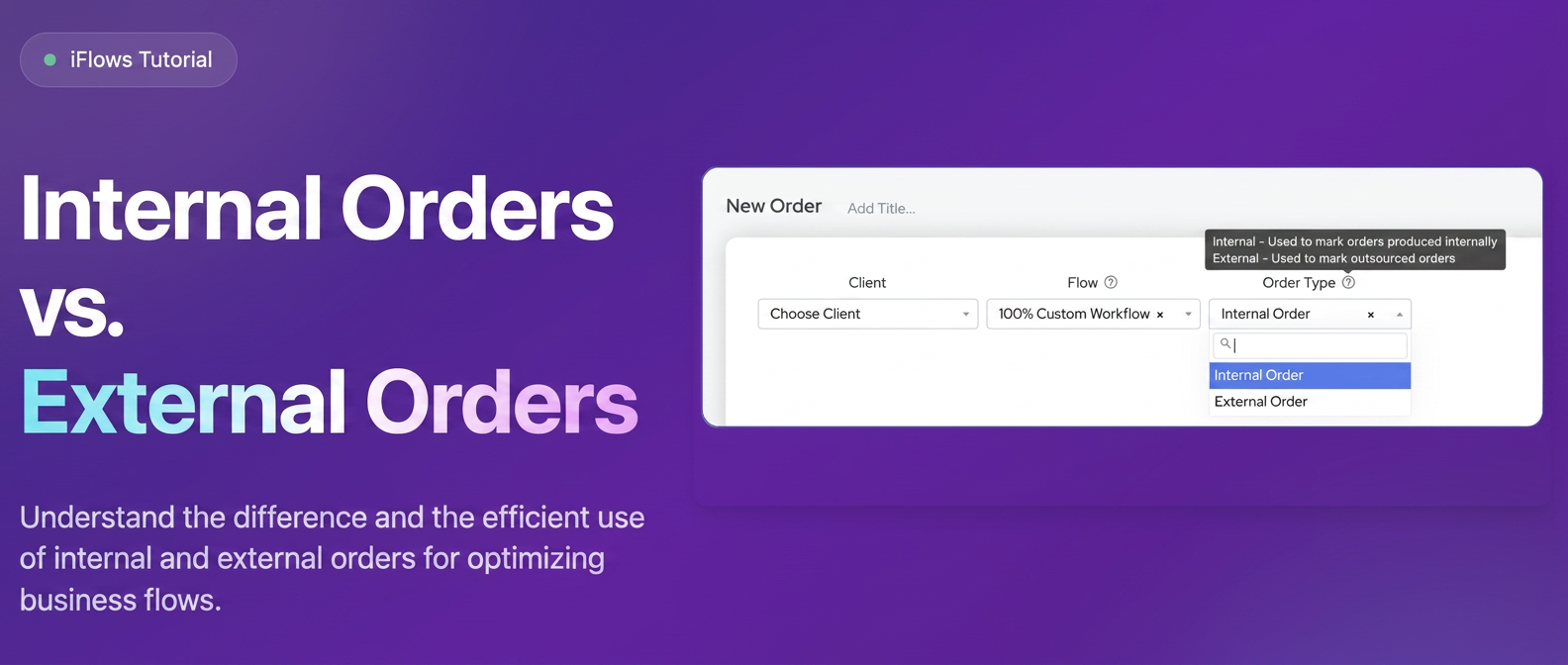
When creating or editing a sales order, you have the option to classify it as an "Internal Order" or an "External Order". This article explains the purpose of this classification and how you can use it.
1. What do Internal Order and External Order represent?
-
Internal Order: This is the default option when creating a new order. It was designed to represent orders whose processes (production, services, etc.) are managed entirely within your company, using your own resources. The reasoning behind the default setting is that, statistically, most companies manage the majority of orders internally.
-
External Order: This option was designed for situations where completing the order involves outsourcing parts of the process to partners, collaborators, or external suppliers. Common examples include:
-
You act as an intermediary.
-
Certain services or components required for the order are performed/provided by another company.
-
You want to track orders that depend on third parties within the iflows workflow.
-
2. What impact does selecting the order type (Internal/External) have?
It is essential to understand that selecting the order type (Internal or External) DOES NOT influence the operational processes or automated functionalities associated with the order in iflows. Specifically:
-
It does not change the way invoices, delivery notes, or proformas are generated.
-
It does not affect order statuses or workflow stages.
-
It does not impose additional restrictions or rules.
The primary role of this option is for categorization and filtering, allowing you to organize and analyze orders based on their execution method (internal or with third-party involvement).
3. How is the classification set and where is it used?
-
Setting the Type:
-
The order type (Internal/External) is manually selected from a dropdown menu when creating a new order or editing an existing order.
-
The field is named "Order Type".
-
By default, "Internal Order" is pre-selected.
-
-
Filtering and Reporting:
The main benefit of using this classification is the ability to filter and view orders based on the selected type in various sections of iflows:-
Order List (Sales -> Orders): You can add the "Order Type" filter and use it to display only internal orders or only external ones.
-
Workflow: Similarly, in the workflow view of orders, there is an "Order Type" filter that allows you to narrow down the view.
-
Reports (Reports -> Orders): In the reporting section dedicated to orders, you can generate reports filtered by "Order Type", allowing you to separately analyze volumes, values, or other metrics for internal versus external orders.
-
4. Adapting to your own workflow
Even if the initial intent was the one described above (internal vs. outsourced), you can adapt the use of this classification to your own organizational needs. If "Internal" and "External" have a different logical meaning for you in your business context, you can use these labels according to your own reasoning, while still benefiting from the filtering and reporting capabilities. The important thing is to have a clear internal convention on the meaning of the two types.