
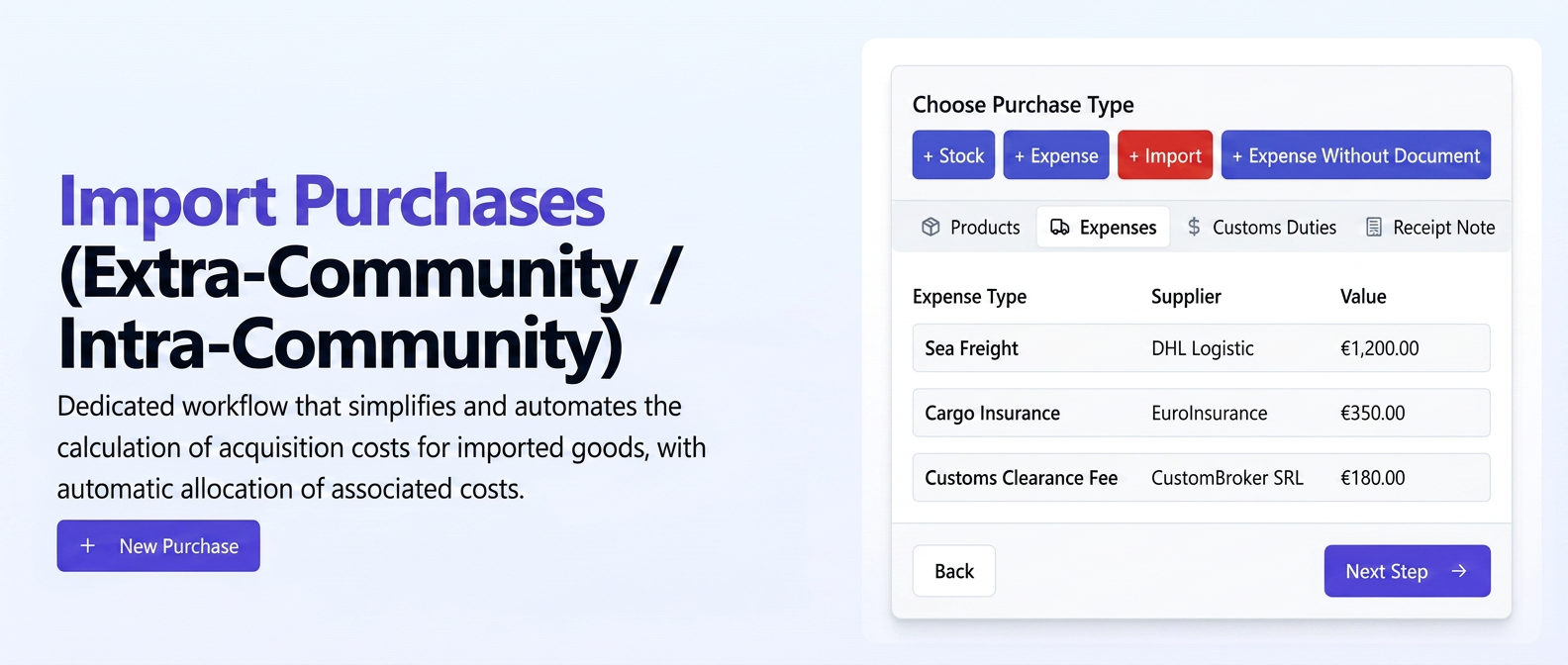
We have introduced a new document type in , specifically dedicated to managing imports (Extra-community and Intra-community). This new workflow is designed to simplify and automate the complex process of calculating the correct acquisition cost for imported goods by allowing the addition and automatic allocation of various associated costs directly on the procurement document.
The main features of this module are:
- Guided Workflow: The interface guides you step-by-step through distinct sections for: defining products, adding associated expenses (e.g., transport), customs duties, and other additional values.
- Associated Cost Management: You can add various types of expenses (transport, commissions, etc.) and taxes (customs duties), specifying the supplier, supporting document, currency, and exchange rate.
- Customs Duty Allocation: Allows for selective allocation of customs duties to specific products within the procurement.
- Automatic NIR Cost Calculation: Based on the entered information (product price + all allocated associated costs), the system automatically calculates the final acquisition cost per product in EUR and uses it to generate the Nota de Intrare Recepție (NIR - Reception and Inspection Note).
- Integrated NIR Generation: The final section of the workflow allows for the direct generation of the NIR, with correctly pre-calculated stock entry values, including all additional costs.
This module eliminates the need for complex manual calculations and subsequent adjustments to entry costs, ensuring correct valuation of imported stocks and accurate accounting records.
User Guide:
- Initiating the Import Procurement:
- Navigate to .
- Press the + New Procurement button.
- In the "Choose Procurement Type" window, select the + Import option.
- Select Import Type (e.g., Extra-community).
- Complete the header data: Supplier, Document Series/No. (import invoice), Document Date, Due Date, Currency (e.g., EUR), Value without VAT (the value of the goods from the external invoice).
- Adding Products:
- In the document lines section (# | Document Product | Management ...), press + Add Line.
- Enter product details: Name/Code, Management, MU, Quantity, Unit Price in the currency of the import document (e.g., EUR). The system will automatically calculate the Value in the currency and the EUR equivalent.
- Add all imported products.
- You can fill in the DVI No. and DVI Date (Customs Value Declaration) if they are available at this stage.
- Press the green button "Complete the next section".
- Adding Associated Expenses:
- Press + Add Line.
- Select the Type of expense (e.g., Road Transport).
- Select the service Supplier (can be different from the goods supplier).
- Enter Doc. No. (transport invoice), Currency (can be EUR or another currency), Exchange Rate (if the currency differs and is not EUR), Value without VAT.
- Add other expense lines if applicable.
- Press "Complete the next section".
- Adding Customs Duties:
- Activate the "Customs Duties" section.
- Press + Add Duty.
- Select Duty Type (e.g., Customs Duty).
- Under Selective Addition, choose the specific product(s) to which the duty applies.
- Enter the Value of the duty (usually in EUR).
- Select the Allocation method.
- Add other duties if necessary.
- Press "Complete the next section".
- Adding Additional Values:
- Activate the "Additional Values" section.
- Press + Add Line.
- Select the Type (e.g., Additional Value), add a Description.
- Select Supplier, enter Doc. No, Currency, Exchange Rate, Value without VAT.
- Select the Allocation method.
- Press "Complete the next section".
- Generating the NIR:
- The "Generate NIR" section becomes visible.
- Note: The table displays the products again, but the Doc. Unit Price and Value columns are now calculated in EUR and include all associated costs, customs duties, and previously allocated additional values. Total Value represents the total acquisition cost in EUR.
- Complete the final NIR details: Stock Entry Date, Reception Commission (Choose Employee), Delegate, Warehouse Manager.
- Finalization: Press the Save button. The Import-type procurement is saved, and the NIR is generated with the correct stock entry costs.
Related articles
Product Import into Documents with Dynamic MappingTutorialsImport and Update Products & Customers from FileTutorialsProducts — importing and exporting the product catalogue from an Excel file (Reconfiguration)TutorialsSupplier orders — requirements from client ordersTutorialsTransferring payments from supplier order to purchaseTutorials