
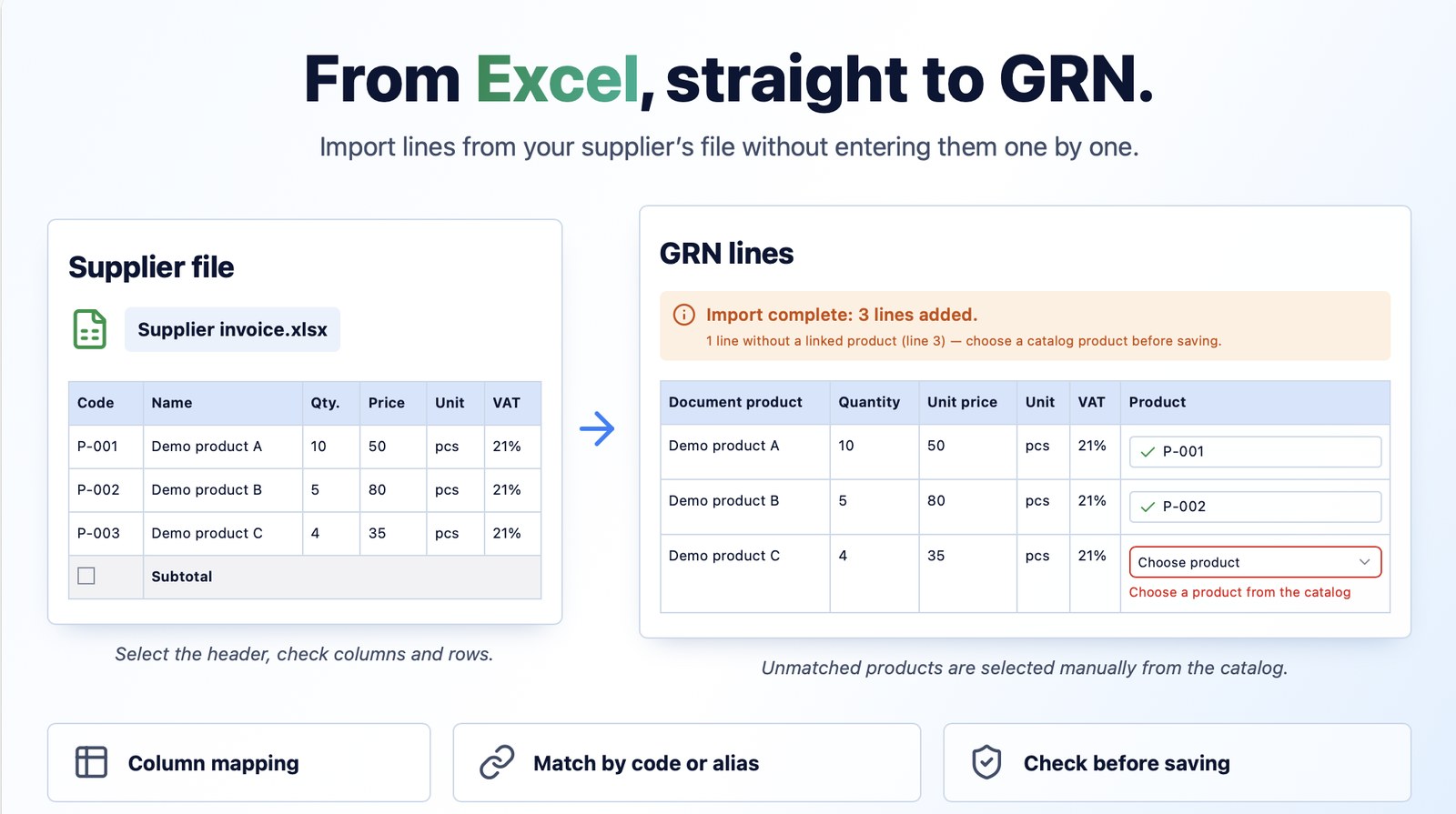
Most of the time, the GRN (goods received note) is created from the incoming invoice taken over from SPV, and its lines are filled in automatically. If you placed the supplier order in iFlows, you can generate the incoming invoice and the GRN directly from that order. For the cases where you have neither of these sources — for example, the goods arrived with a delivery note only, or the invoice has not reached SPV yet — you no longer need to enter the lines manually, one by one: upload the Excel file received from the supplier, and iFlows recognizes the columns, searches the catalog for the products by code or alias, and adds the lines to the GRN, with quantities, prices, units of measure and VAT rates.
The result
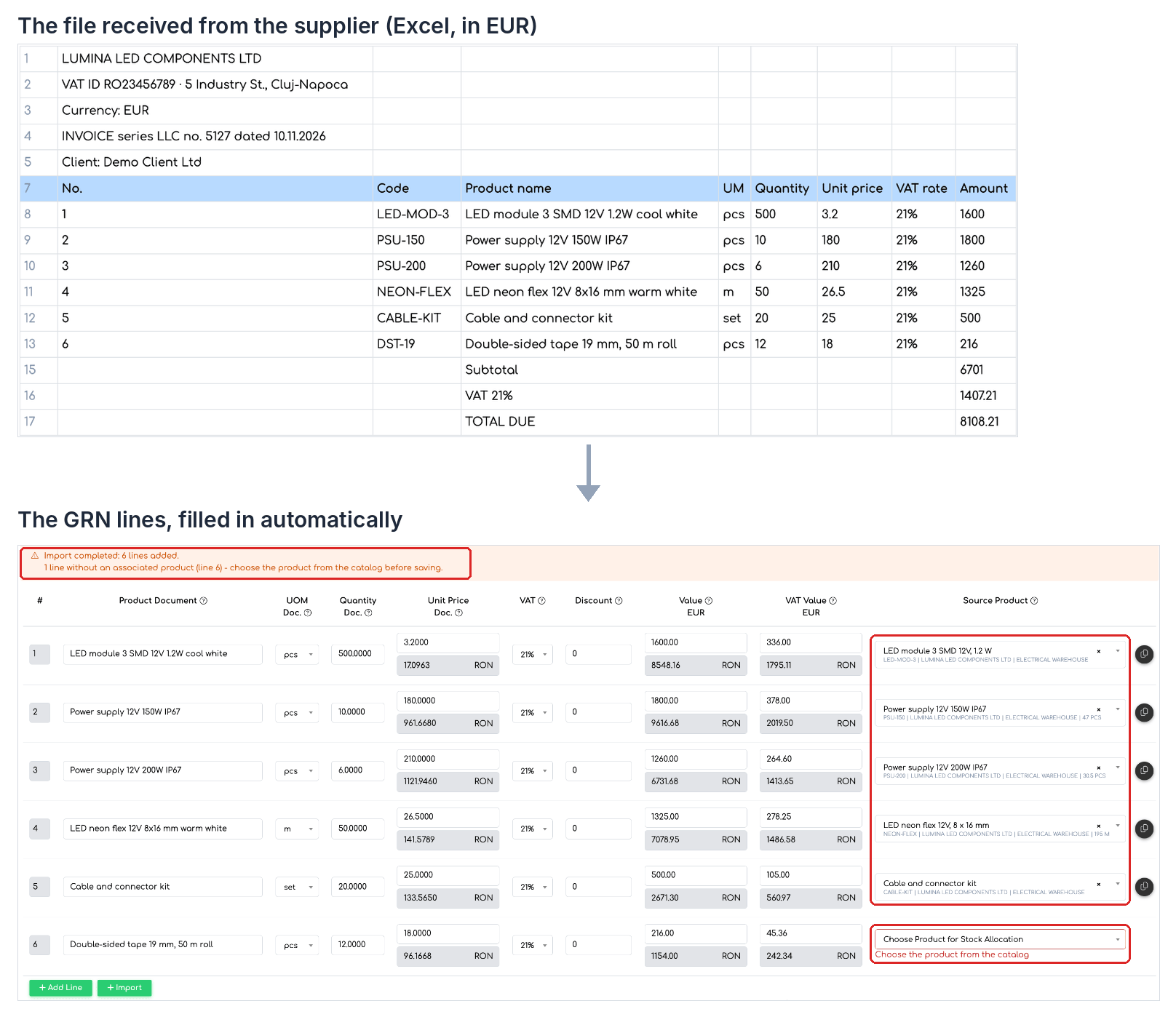
Top: the supplier's invoice in Excel, in EUR. Bottom: the GRN lines added automatically, in EUR, with the products found in the catalog by code and one line left to complete.
When to use the import
- The invoice is in SPV — take over the incoming invoice from SPV. The lines are filled in automatically, no import is needed.
- You placed the supplier order in iFlows — generate the incoming invoice and the GRN from the order.
- You have neither the invoice in SPV nor the order in iFlows — for example, the goods arrived with a delivery note only, or the invoice has not been sent to SPV yet. Import the lines from the supplier's Excel file.
- The supplier delivered only part of the order — if you do not want to identify manually which products and quantities arrived, import the GRN from the Excel delivery note or invoice for that delivery.
Before you start
- The import is available in , or when editing an existing incoming invoice. It is not available on Import type incoming invoices.
- The file must be .xls or .xlsx, up to 25 MB. The active sheet of an .xlsx file is read, or the first sheet of an .xls file.
- The import does not create new products. The products must already exist in the catalog, in the warehouse (Management) selected on the GRN.
- You need the add or edit right on Incoming Invoices. If the Import button does not appear, check the Import from File option in , Orders tab.
How to import the lines
Step 1. Fill in the header of the incoming invoice (in the example, with the currency set to EUR), then click Add GRN and select the Management (warehouse). Next to the Add Line button, the Import button appears. Click it.

The Import button, next to Add Line, in the GRN block.
Step 2. In the Import from File window, choose the file with Browse or drag it into the marked area, then click Continue.
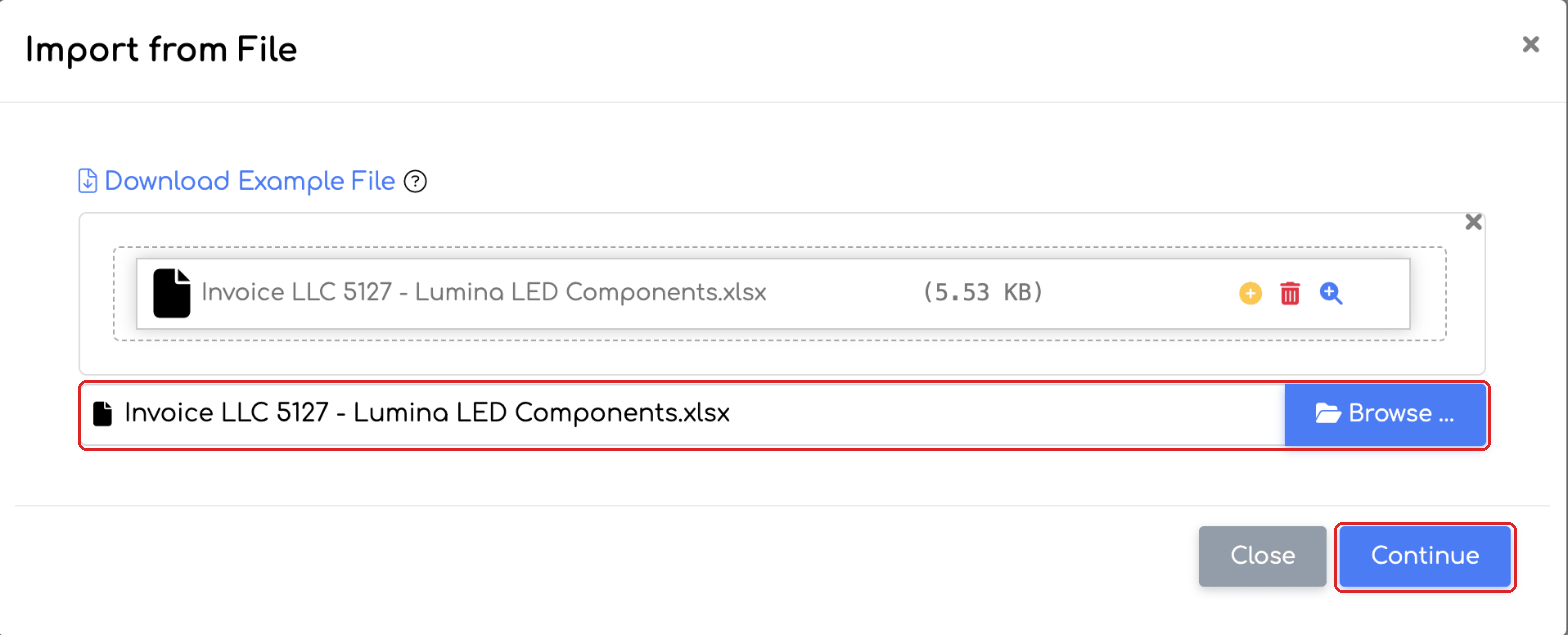
The Import from File window, with the supplier's file selected.
Step 3. Click the row that contains the column names (the header row), then click Continue. The window shows the first 50 rows of the file, so the rows above the table (supplier details, invoice number) do not get in the way.
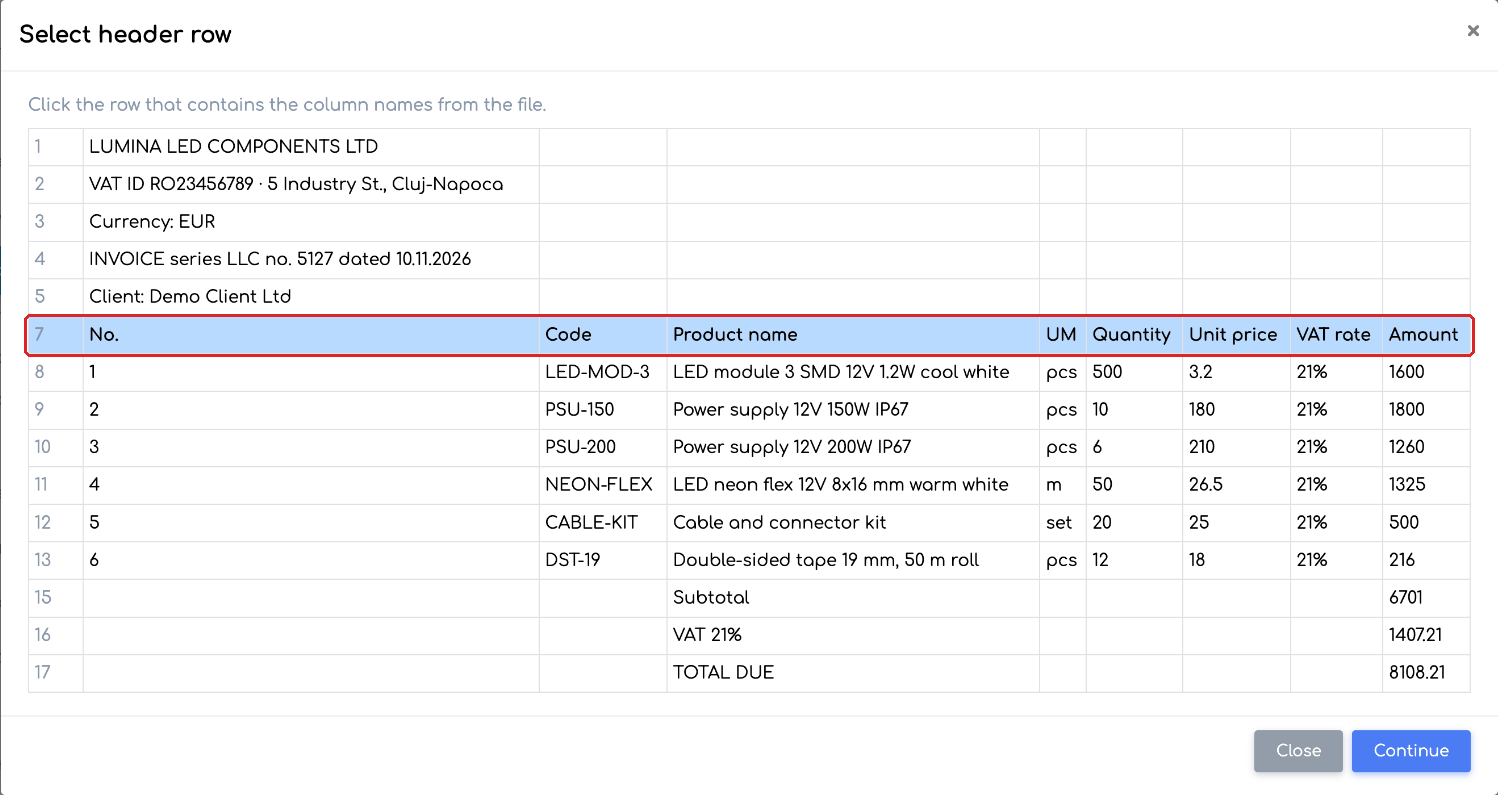
Row 7, with the column names, selected as the header row.
Step 4. Check the column mapping. iFlows maps the columns automatically by their usual names (Name, Quantity, Unit price, UM, VAT rate, Code, Alias), in Romanian or in English. You can change them from the list; a column that is not used stays on “Do not import”.
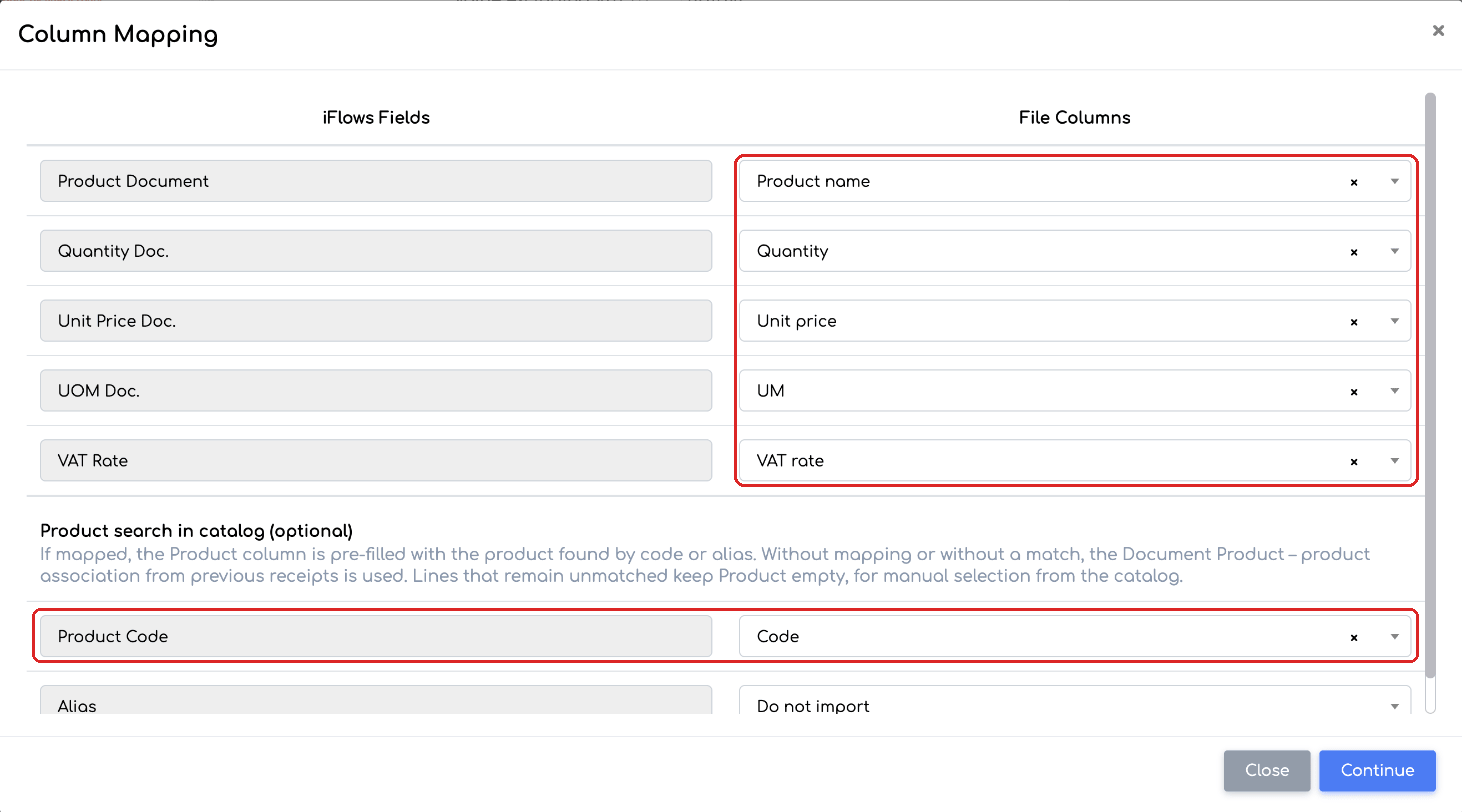
Column mapping: the iFlows fields on the left, the file columns on the right.
- Product Document and Quantity Doc. are required.
- Unit Price Doc., UOM Doc. and VAT Rate are optional.
- Product Code and Alias, in the “Product search in catalog” section, are optional, but they help find the products automatically. We recommend mapping them whenever the file has a code.
Step 5. Choose the rows to import. Total, subtotal and category rows are unchecked automatically, and empty rows are hidden. Use the select-all checkbox if needed, then click Continue.
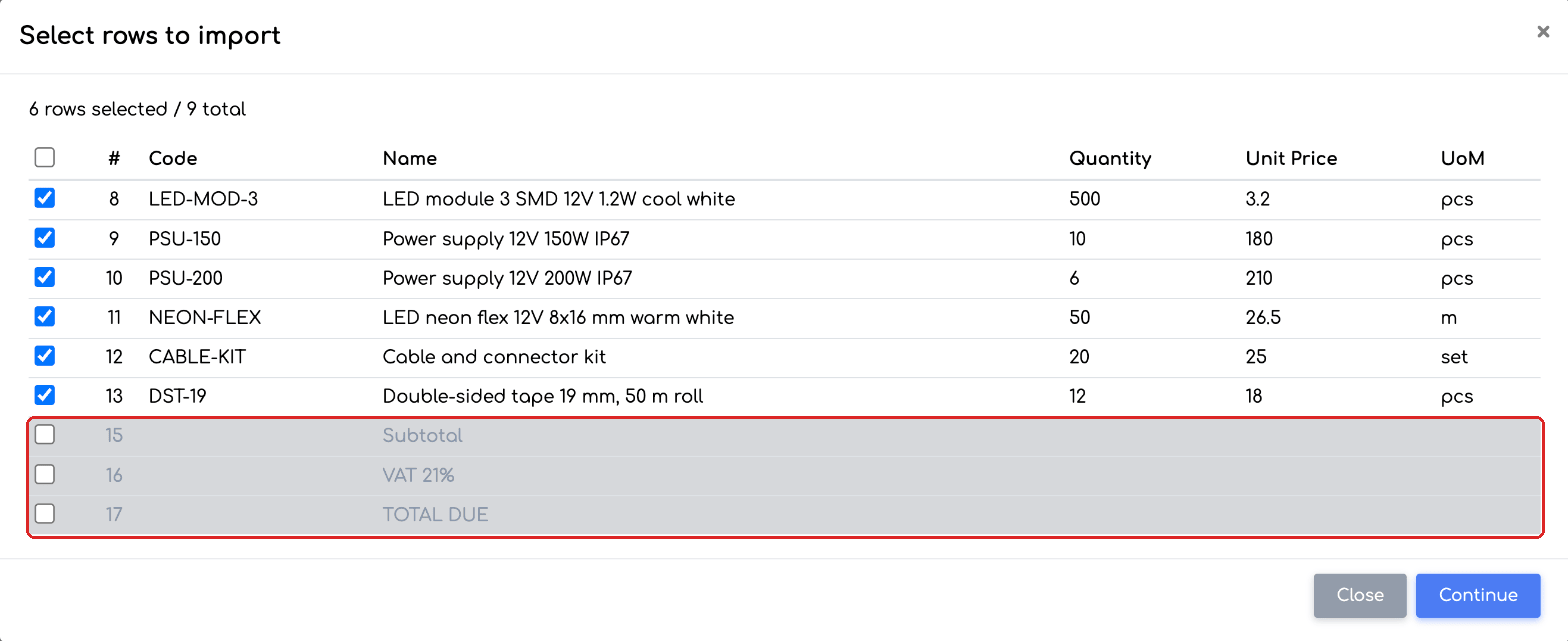
Rows to import: Subtotal, VAT and Total due are unchecked automatically.
Step 6. The lines are added to the GRN, and the import summary appears above the table. On the lines marked in red with the message “Choose the product from the catalog”, select the product manually. The GRN cannot be saved until all lines have a product. Then save the incoming invoice as usual.
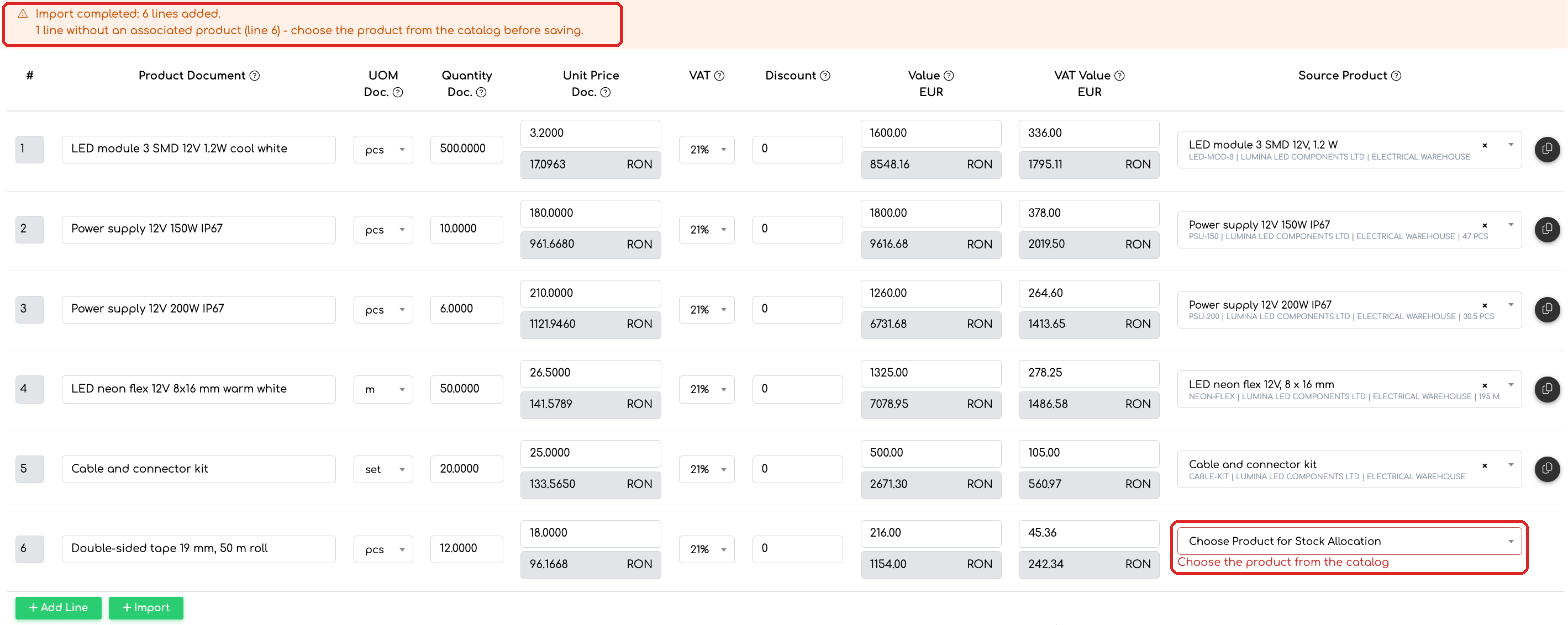
The import summary and line 6, with no associated product, to be completed from the catalog.
How the lines are filled in
- The product is searched first by Product Code, then by Alias, among the active products of the selected warehouse (excluding deleted and archived products and superproducts). If several products are found, the line is treated as not found.
- If the product is not found this way, iFlows uses the associations made on previous GRNs: the same name in “Product Document” already linked to a product. So, after the first receipts from a supplier, more and more lines are filled in automatically.
- The unit of measure is matched by name; otherwise the product's supplier unit of measure is used.
- VAT rate: the values “21”, “21%” or “0.21” mean 21%, while “SFDD”, “SDD”, “reverse charge” or “VAT included” correspond to the 0% rates. For any other value, the default rate is applied, with a warning.
- Prices are taken as they are in the file, in the document currency (EUR in the example), without conversion. For a document in a foreign currency, the RON equivalent is shown under each value. Totals and the received quantity are calculated just like for a manually added line.
- The imported lines are added to the ones already in the GRN block; lines already entered are kept.
The import summary
The message above the table shows the number of lines added and, where applicable:
- lines with no associated product, no price, no unit of measure or an unidentified VAT rate, with their numbers;
- ignored rows (no name, invalid, zero or negative quantity), with the Excel row number;
- a warning when the sum of the lines differs from the value excluding VAT entered in the header of the incoming invoice.
Note: For very large files, a message tells you the file has too many lines to be saved; reduce the number of lines and try again. The uploaded file is not kept in the platform after the import.
Frequently asked questions
The invoice is in SPV. Do I still need the import?
No. Take over the incoming invoice from SPV, and the GRN lines are filled in automatically. The Excel import is for the cases where the invoice is not in SPV yet or the goods arrived with a delivery note only.
I have the supplier order in iFlows, but the supplier delivered only part of it. What should I choose?
You can generate the incoming invoice from the order, in which case you identify the products and quantities that arrived yourself. If you do not want to do this manually, import the GRN from the Excel file for that delivery.
The supplier sends the invoice as PDF or XML. Can I import it?
The import only accepts Excel files (.xls or .xlsx). If the supplier can also send the invoice or delivery note in Excel, use that file.
Is the column mapping saved for that supplier?
The column mapping is not saved, but on every import the columns with usual names are mapped automatically. What is kept are the associations between the name in the supplier's document and the product in the catalog, so that on later receipts more and more lines are filled in automatically.
The invoice is in euro. Are the prices converted?
No. Prices are taken in the document currency, exactly as they are in the file.
The supplier invoices by the box, but I keep stock by the piece. How is the quantity calculated?
The quantity and unit of measure are taken from the file. The received quantity in the stock unit is calculated just like for a manually added line, based on the unit conversion defined on the product.
Why was a line with the correct code not found?
The product is searched only in the warehouse selected on the GRN, among active products. Archived and deleted products and superproducts are not taken into account. If the same code is found on several products, the line remains to be completed manually.