
 1. General Overview
The Service module () now has two tabs: Equipment — the list of equipment in service, which existed until now — and the new Reports tab, which gathers all service reports generated from workflows in one place. Until now, reports could only be consulted equipment by equipment; the new tab provides the complete picture: all company reports, filterable, exportable, and with the option to send via email to the client directly from the list.
The tab is useful for service teams and managers tracking performed work, as well as for sending signed reports to customers. It links to the Workflow (where reports are generated), Service equipment, orders, and email templates.
2. Where Reports Originate
Reports are not created from this page — they are generated in the workflow via the Service Report instruction: as a service order progresses through the workflow stages, the technician completes the work report directly in that stage — equipment template fields, photos and attached files, and the customer's signature. Each report remains linked to the targeted equipment, the order from which it was generated, and its customer.
Report types correspond to types of service work: Maintenance, Intervention, Warranty Intervention, and Installation. Reports remain visible in the record of each piece of equipment, as before — the Reports tab is a centralized view of all of them.
3. The Report List

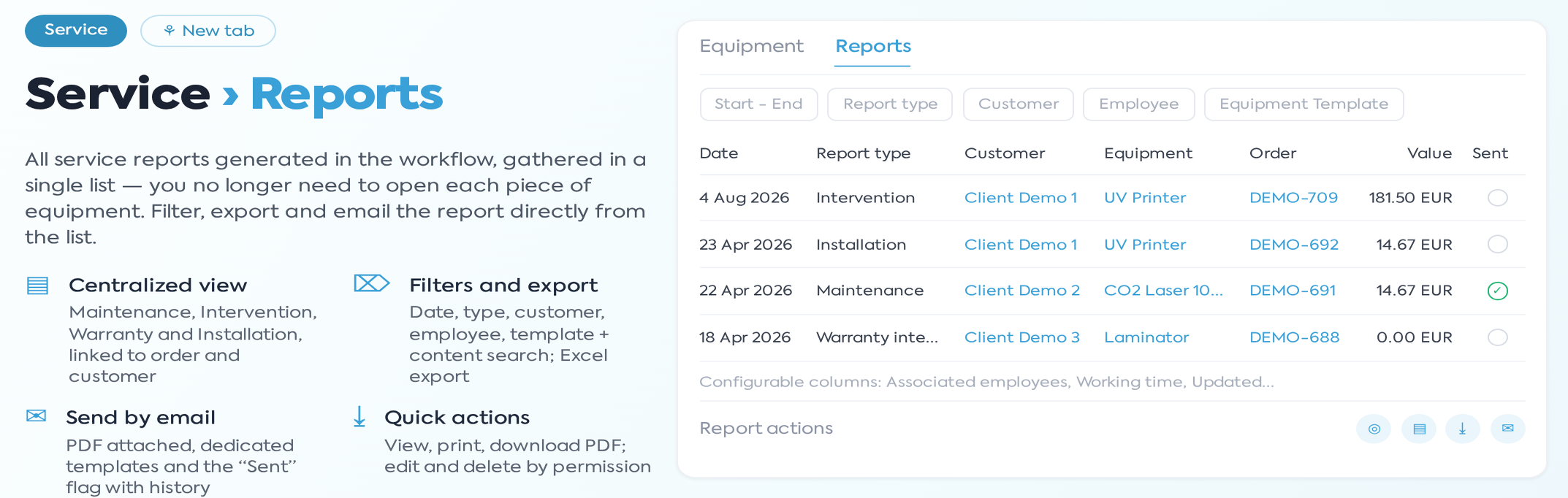
The Reports tab in the Service module.
The list displays reports in date order, with the following columns: Date (work date), Report Type, Customer (with a link to the customer record), Equipment (template and equipment alias, with link), Associated Employees (those who worked in that stage), Working Time, Order (with link), Value (order value), Updated, Sent (green checkmark when the report has been sent via email), and Actions. Displayed columns can be configured from the filter options menu, and the selection is saved per user.
Available filters: date range, Report Type, Customer, Employee, and Equipment Template (all with multiple selection, in include or exclude mode), plus text search — which also searches within the report content (filled fields, equipment, order number). The export button downloads the filtered list to Excel. The search covers equipment name, template name, order number, and text filled in report fields; multiple words can be typed, and results will contain all words. The Excel export includes exactly the columns displayed at that moment and all rows passing the filters, not just the current page. Note the period filter: reports without an intervention date do not appear in results while the filter is active.
4. Actions on the Report
- View — opens the full report in a viewing window.
- Print — opens the report ready for printing.
- Download — downloads the report in PDF format.
- Send E-mail — opens the standard email sending interface, with templates dedicated to service reports and the PDF report attached. After sending, the Sent column displays the green checkmark, and the platform remembers to whom, by whom, and when the report was sent. Proposed recipients are the customer's contacts from the report's order, and up to ten addresses can be added in one send. The sending date, recipient, and sender can be seen by hovering over the checkmark in the Sent column, and the full sending history appears in the View window.
- Edit — opens the report for modification — template fields, photos and attached files, display options (working time, signature), and recommendation for a future intervention (type and date).
- Delete — removes the report, with confirmation. Deleting also removes the work from the equipment history: along with the report, the corresponding intervention, revision, or installation disappears from the equipment record.
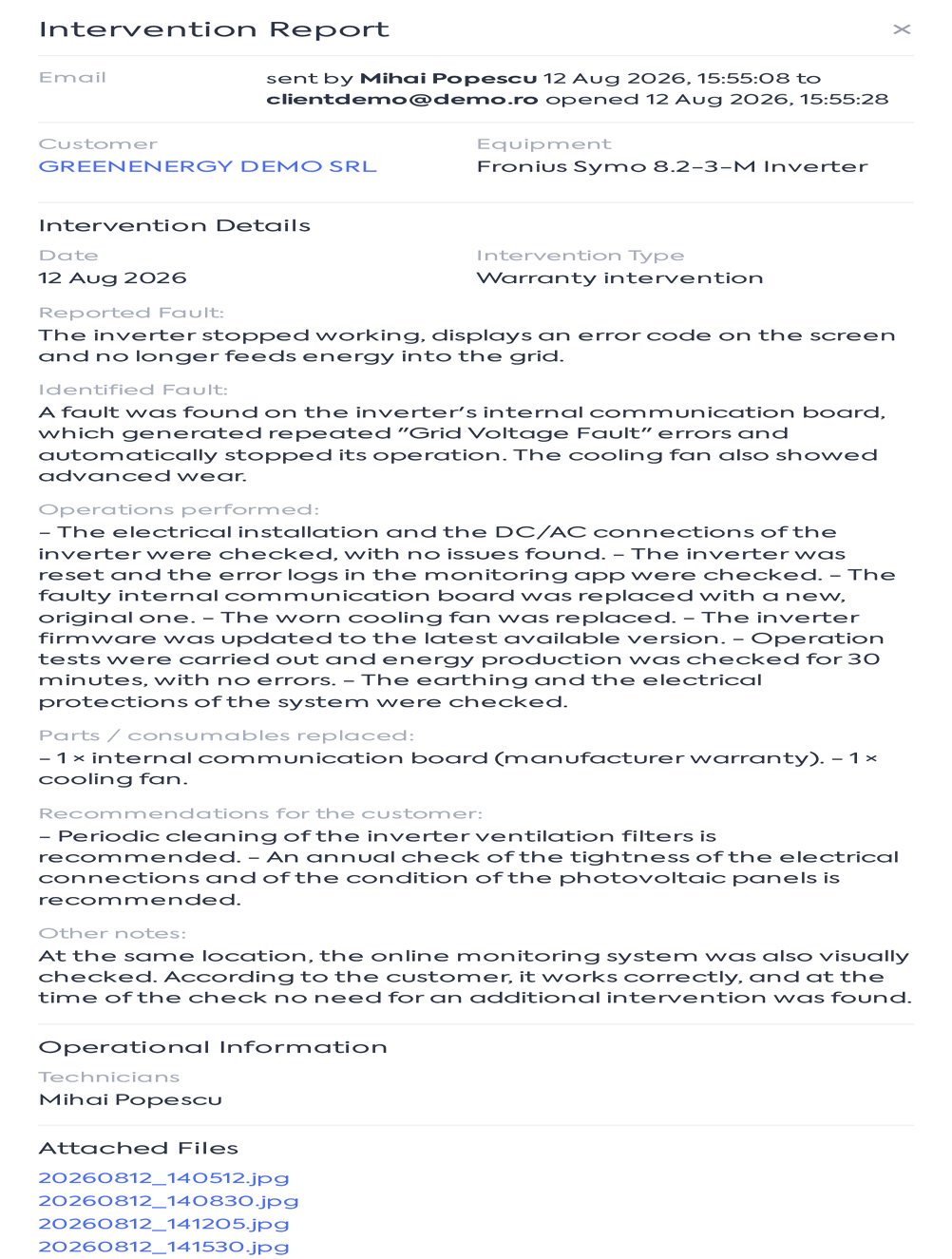
The View window of a report, with the email sending history at the top.
5. Reminder:
A few useful details for daily work:
- The equipment and template names are frozen at the time the report is issued, so the report keeps the data from that moment even if the equipment is renamed later.
- If a recommended future intervention was checked in the report, the platform sends a notification to the company address on that date and automatically creates the scheduled intervention, revision, or installation.
- In the PDF, if the report has at most three attachments, the images are embedded in the document; beyond this number, only the filenames appear in the report.
- During editing, files can only be added if the workflow instruction had the attachment option enabled, and the client's signature cannot be deleted from the interface.
- The list is not filtered by departments or teams: any user with access to the Service module sees all company reports.
6. Permissions
The Reports tab follows the viewing permission of the Service module. Modification actions — Edit and Delete — are only available to users with the dedicated permission "Can Edit Service Reports"; others only see the consultation and sending actions. Users with administrator rights have default access.