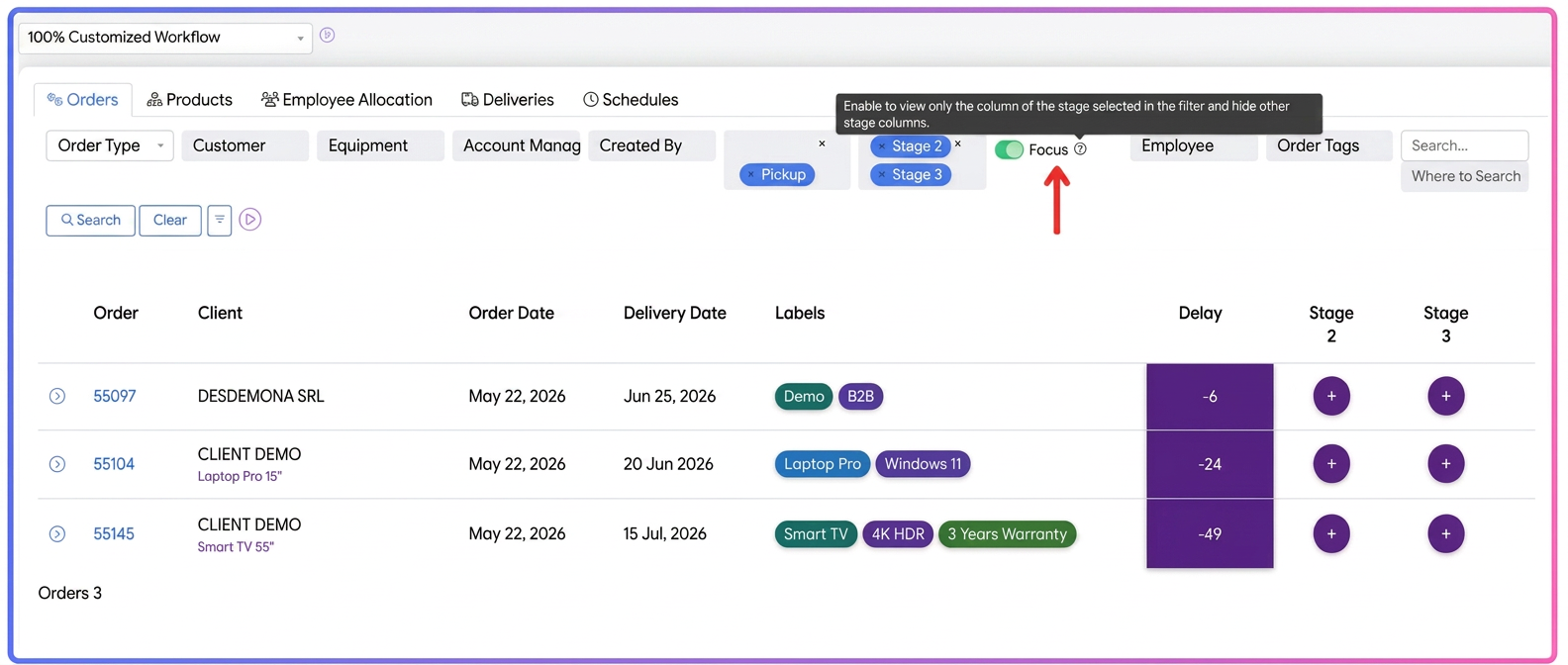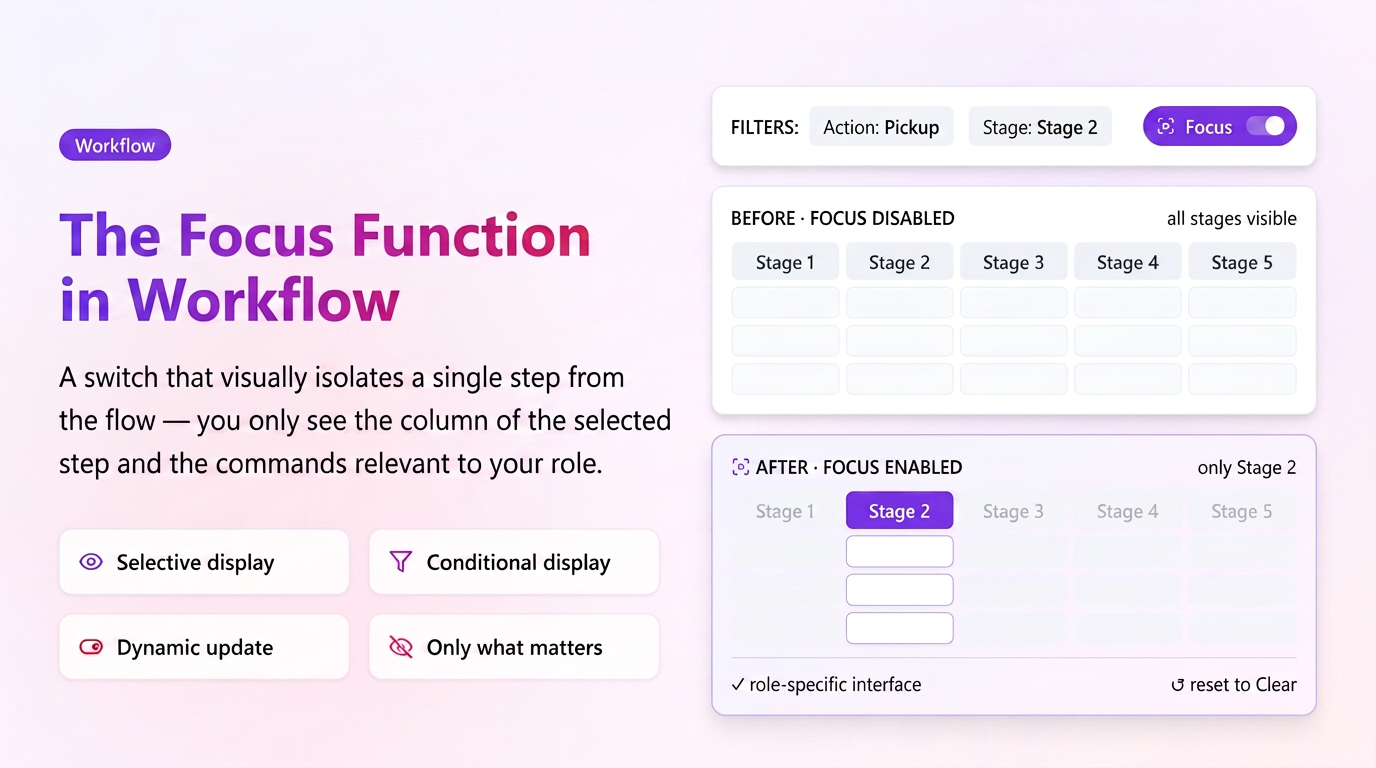
Focus is a toggle that allows you to concentrate on a single stage of the workflow. When activated, the table displays only the column of the selected stage and hides the columns of subsequent stages, making it easier to track orders at a specific status.
The Focus functionality becomes extremely useful in companies where each department or operator works only on certain stages of the workflow and does not need to track the entire operational process.
For example, in an advertising production firm, the equipment operator wants to see only the orders that have actually reached the production stage and only the column for that stage. In the furniture industry, the assembly team is exclusively interested in orders prepared for assembly, without seeing the previous or next stages. In trade or logistics, an operator might manage only the packaging and parcel stages, displaying exclusively those columns.
The Focus functionality transforms the workflow from a complete general view into an operational interface dedicated to each role in the company.
Each user sees:
- only the stages relevant to their activity;
- only orders that can actually be taken over;
- no unnecessary columns or distracting information.
Features
- Selective display — when Focus is activated, the table exclusively displays the column of the selected stage(s), automatically hiding the other stages (for example, if you select Stage 1, stages 2, 3, 4 etc. become invisible).
- Conditional display — the Focus toggle becomes visible in the filter bar only after values have been selected for the Action and Stage filters.
- Dynamic update — if filters are already applied, activating or deactivating the toggle immediately updates the visibility of columns in the table.
- Automatic reset — when pressing the Clear button, the Focus toggle returns to the deactivated state and is hidden.
- Default state — Focus is deactivated by default, displaying all stage columns according to the general filters.
How to use
The functionality is found in the Workflow page, Orders section, in the filter bar (next to the Action and Stage filters).
- Select the Action filter — choose the desired value (e.g., Takeover).
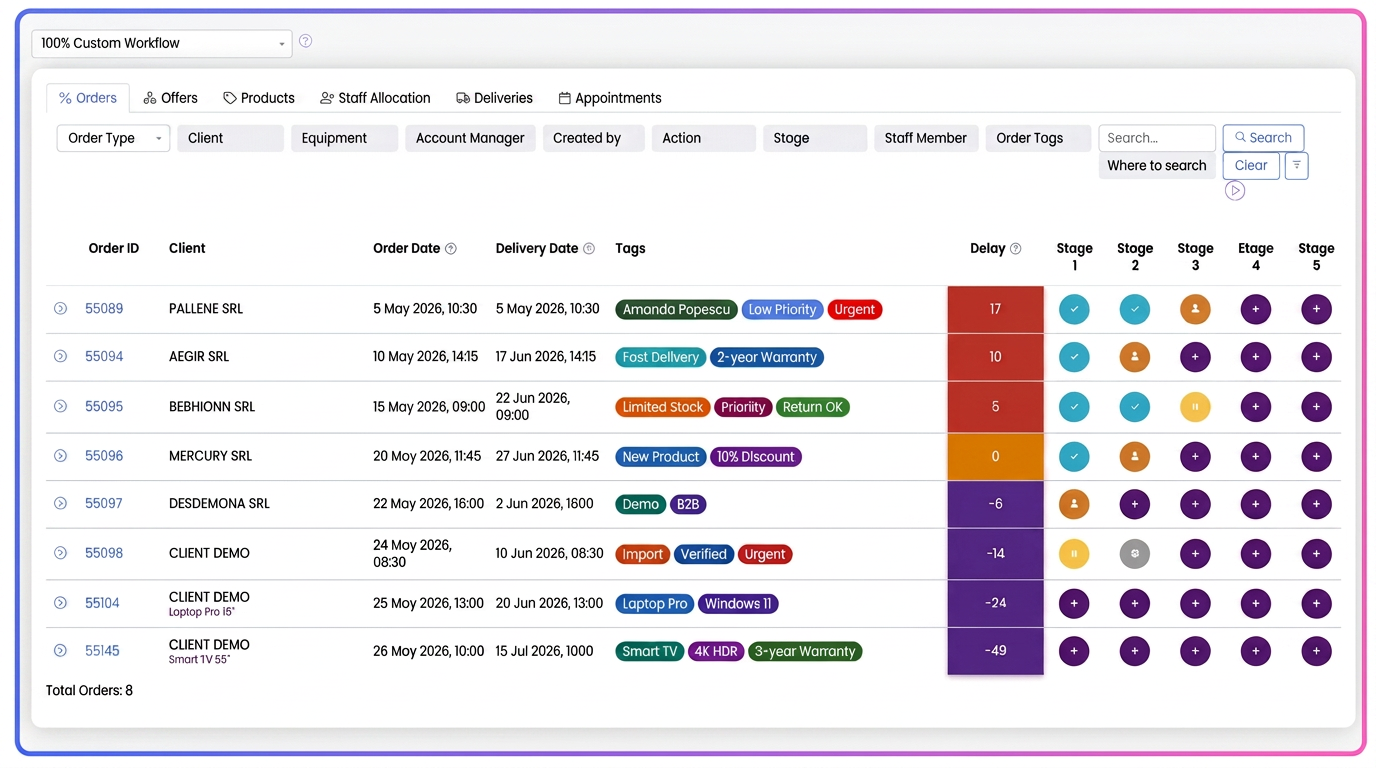
- Select the Stage filter — choose the stage you want to track (e.g., Stage 1).
- Activate the Focus toggle — it becomes visible after step 2. Press it to visually isolate the chosen stage.
- Press the Search button — to apply the filters and update the table.