
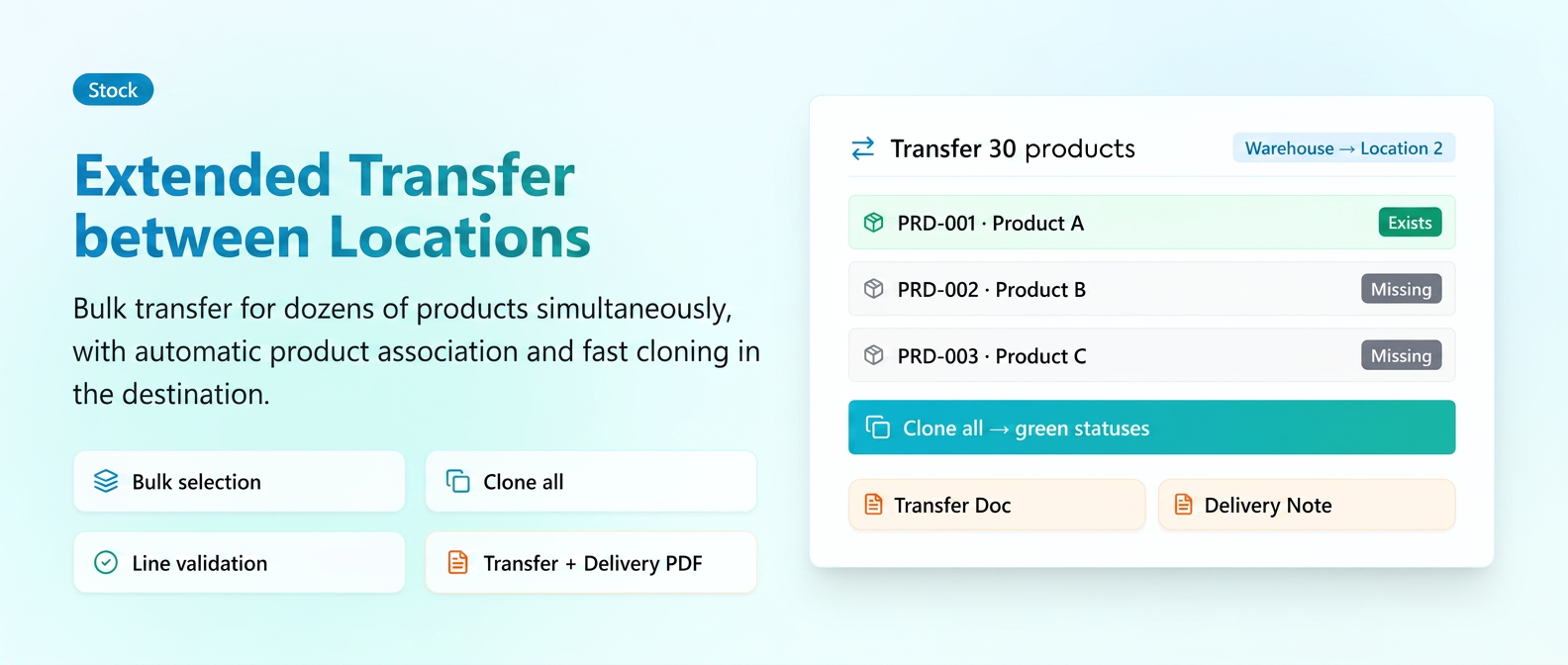
The product transfer functionality between warehouses has been redesigned to cover more complex scenarios and save time in daily operations. In addition to the simple transfer (one product), the platform now offers mass transfers for dozens of products simultaneously, with intelligent automatic matching between warehouses and fast cloning of missing products at the destination.
News and features
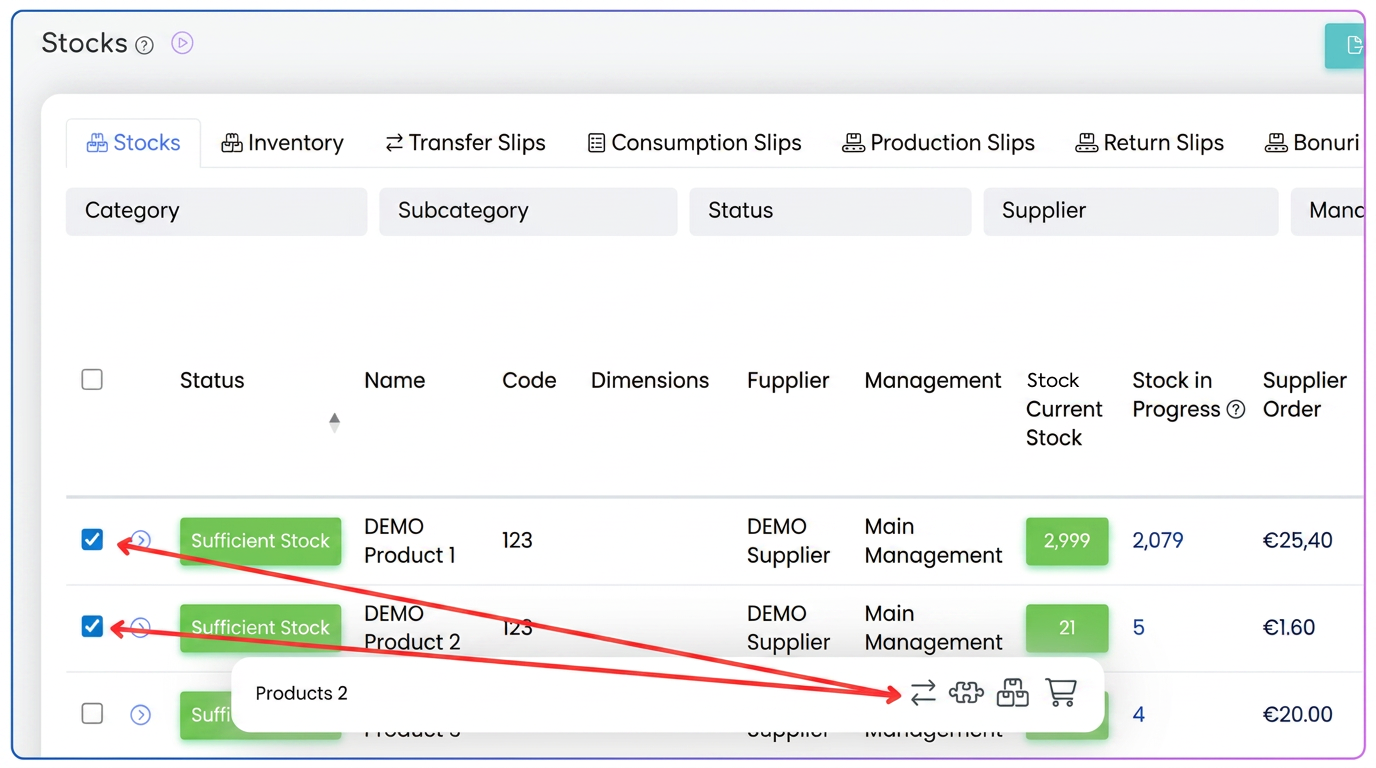
- Bulk selection for transfer — from the stock list, you can check multiple products simultaneously and press the Transfer button from the quick actions bar. All selected products appear pre-filled as distinct lines in the transfer form, ready to be moved to a single destination warehouse.
- Automatic matching by product code — the system automatically identifies corresponding products between warehouses based on the internal code, not the name. This mechanism guarantees transfer accuracy even if products have different names in the two warehouses — important when multiple people maintain the nomenclature. The internal code is mandatory: if the product in the source warehouse has no code, the transfer is blocked and the platform signals this with the Invalid Code status on that line.
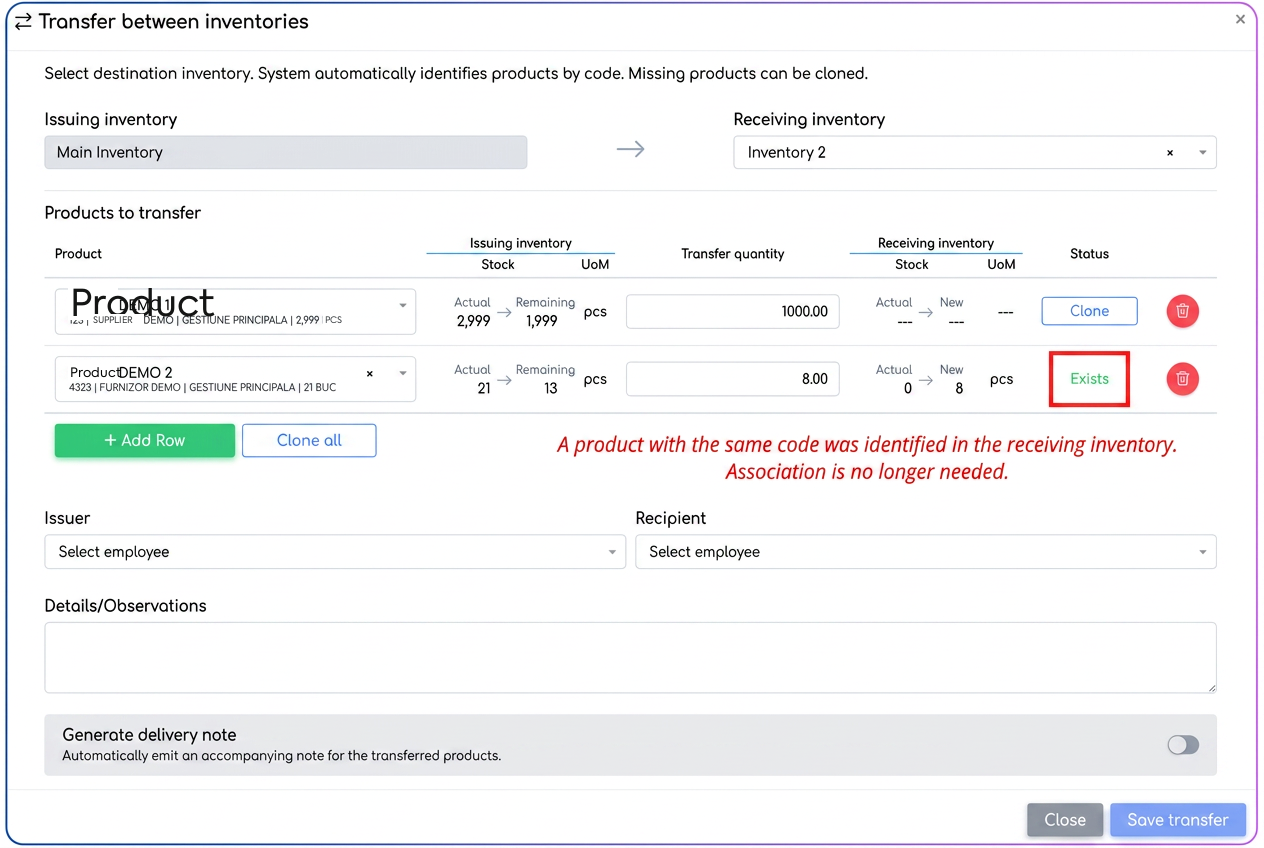
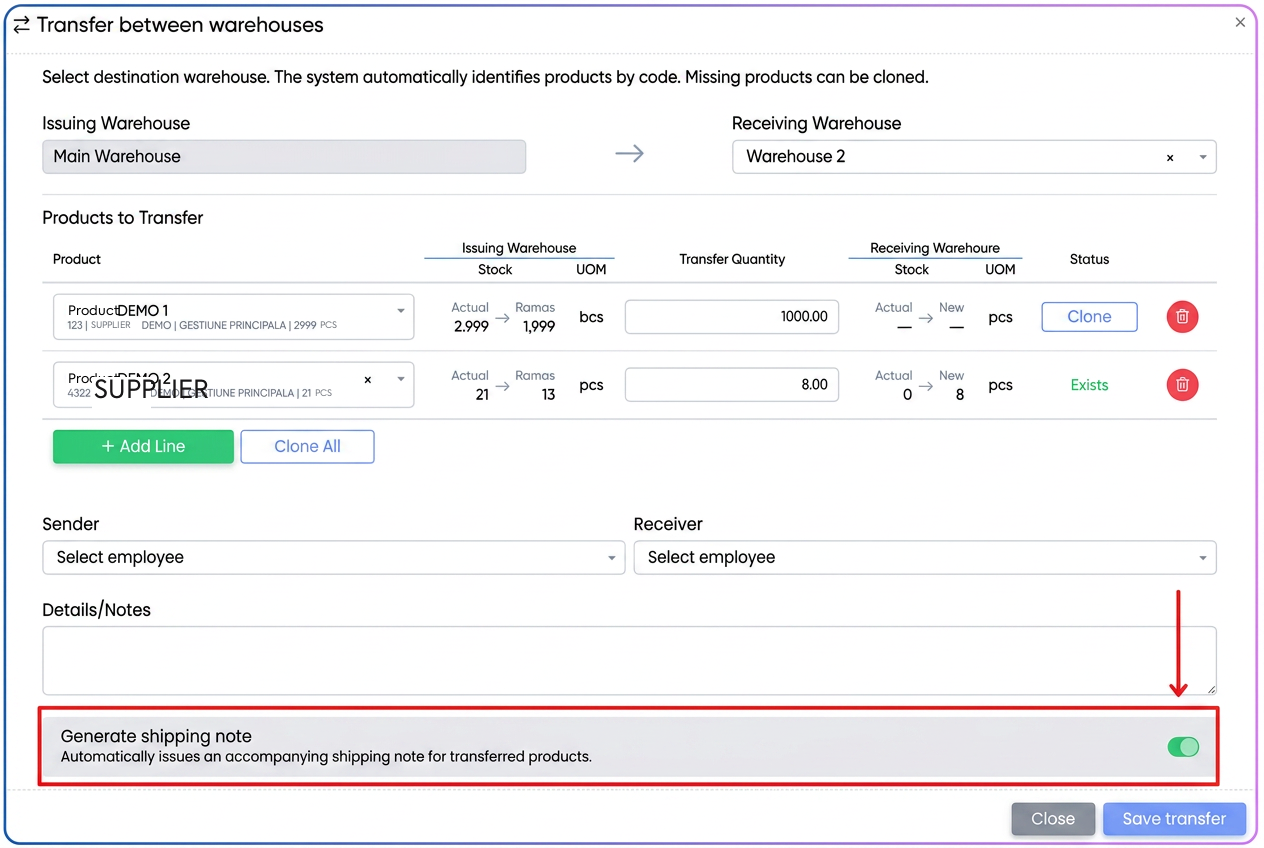
- Cloning missing products at destination — if a product does not exist in the destination warehouse, the Clone button automatically creates a copy of the product in that warehouse, keeping the code, name, and all attributes (UoM, VAT code, etc.). The initial stock of the copy is 0, to be populated by the current transfer. For bulk transfers, there is also a Clone All button, which processes all missing products in seconds, eliminating the need to add them manually one by one.
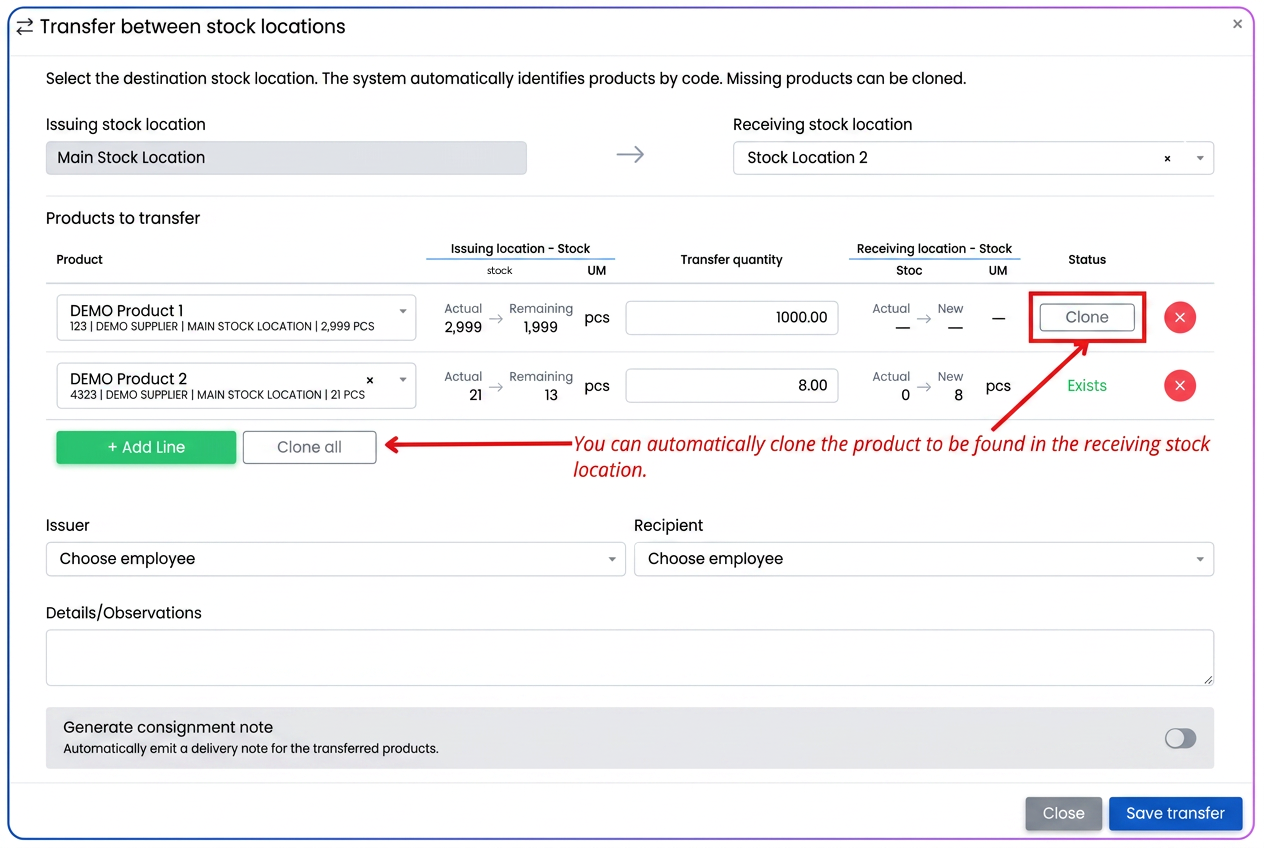
- Visual validations per line with color-coded statuses — each line displays a real-time colored status showing if the transfer can be performed or what needs to be resolved: Exists (green, everything okay), Missing from destination warehouse (gray, with cloning option), Invalid code (red, internal code missing), Incompatible UoM (red, no defined conversion), or Insufficient stock (red, quantity too high). The save button remains disabled until all lines are green.
- Real-time stock calculation — as you enter the quantity, the platform displays both the current stock and the estimated stock after transfer in both warehouses — you instantly see the situation after saving.
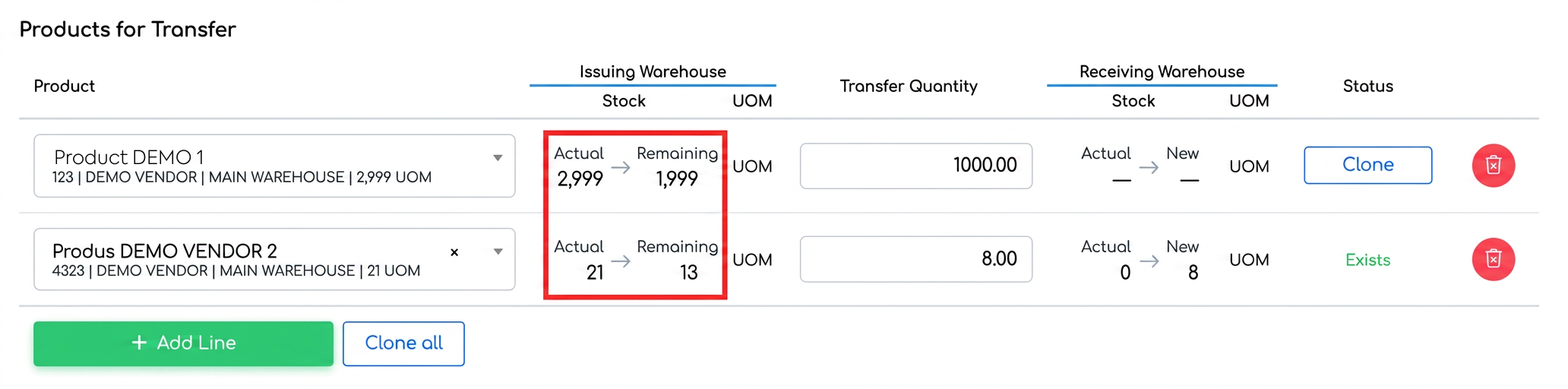
- Automatic UoM conversion between warehouses — if the product has different but compatible units of measurement in the two warehouses (with a defined conversion ratio), the system automatically applies the conversion without manual calculations.
- PDF Transfer Note with automatic numbering — each transfer generates a downloadable or directly printable note (Bon de Transfer), with dedicated sections for sender/receiver signatures and unit prices calculated at the weighted average cost of each product.
- Integration with the Notices module — the Generate notice option automatically creates a Shipping Notice (Aviz de Însoțire) upon saving the transfer, useful for shipments between different physical locations (justification in case of inspections).
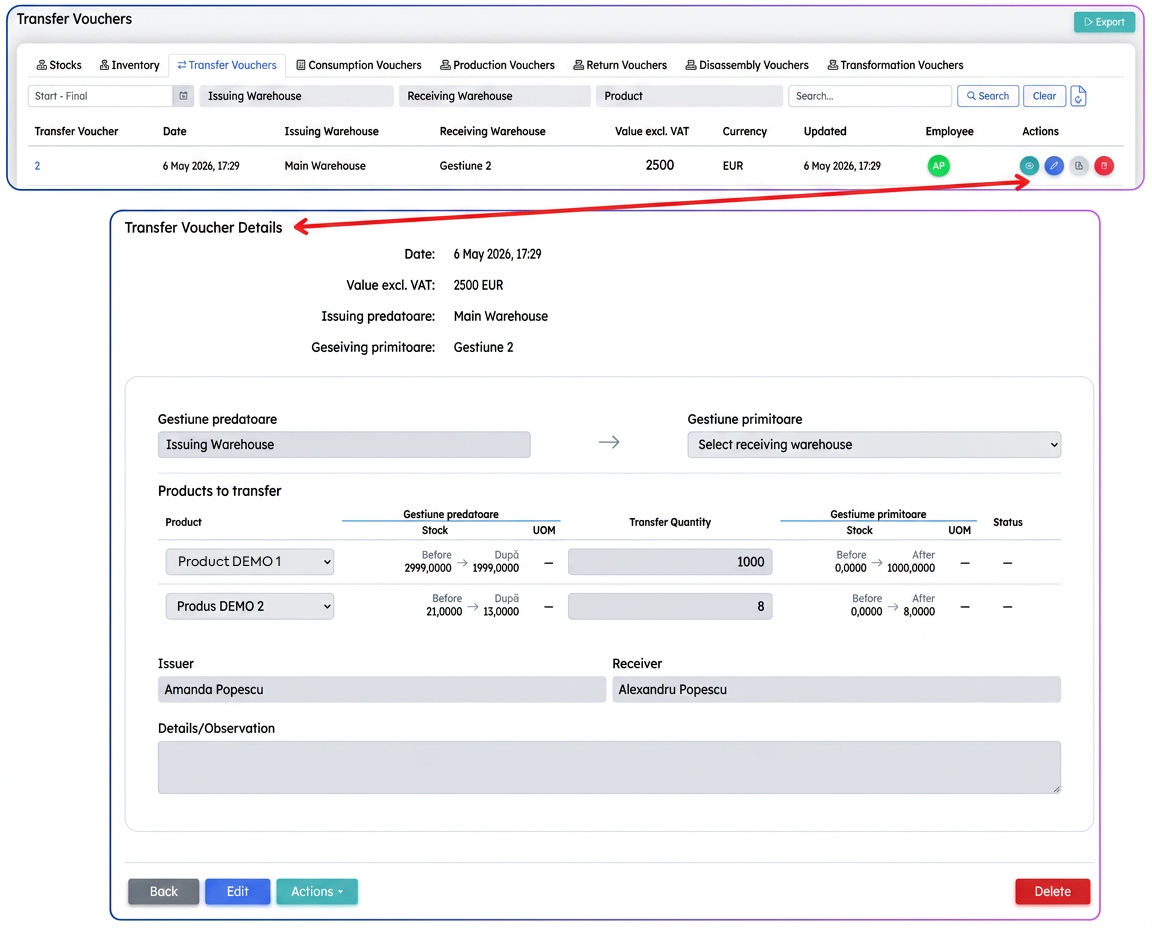
- Editing with automatic reversal — saved transfers can be edited (quantities, observations, responsible persons) or deleted, with automatic stock recalculation in both warehouses — without the need for manual correction notes.
How to use
For a simple transfer (a single product):
- From the product page (), press the Transfer button.
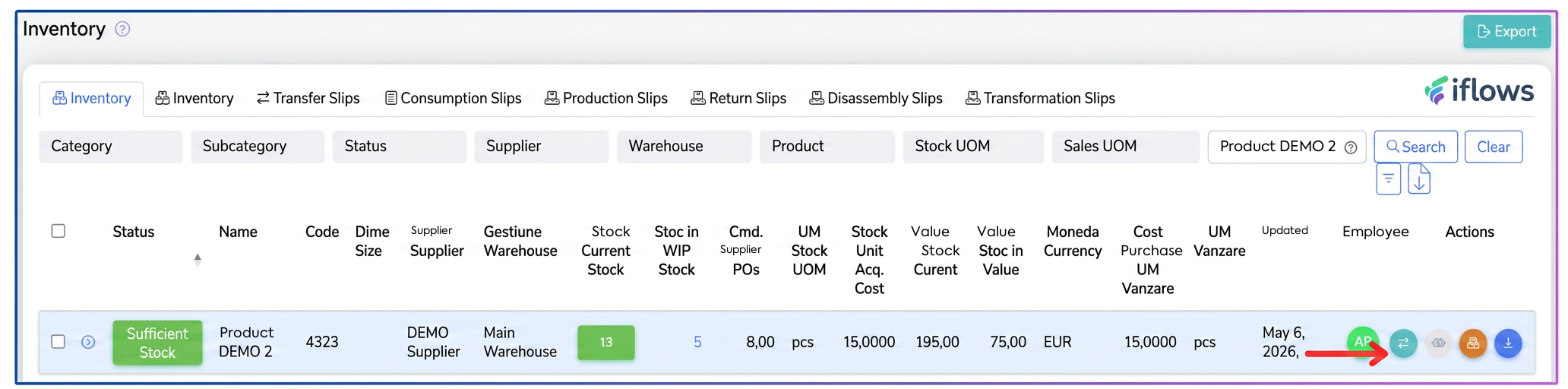
- Choose the destination warehouse, fill in the quantity, and save.
For a mass transfer:
- In Stocks, apply the desired filters and check the products you want to transfer.
- Press Transfer from the quick actions bar that appears after selection.
- Choose the destination warehouse. If some products do not exist at the destination, press Clone All to copy them automatically.
- Adjust the quantities, optionally check Generate notice, then save.
Practical Example
A distribution company opens a new warehouse in a secondary location and wants to supply it with 30 products from the central warehouse. None of the products exist yet in the new warehouse.
→ The operator filters the stock list by the central warehouse, checks the 30 products, and presses Transfer.
→ Chooses the new warehouse as destination — all 30 lines receive the status "Missing from destination warehouse".
→ Presses Clone All once — in a few seconds, the products are copied to the new warehouse and the statuses turn green.
→ Adjusts quantities, checks Generate notice, and saves — the transfer note and shipping notice for transport are issued instantly.