
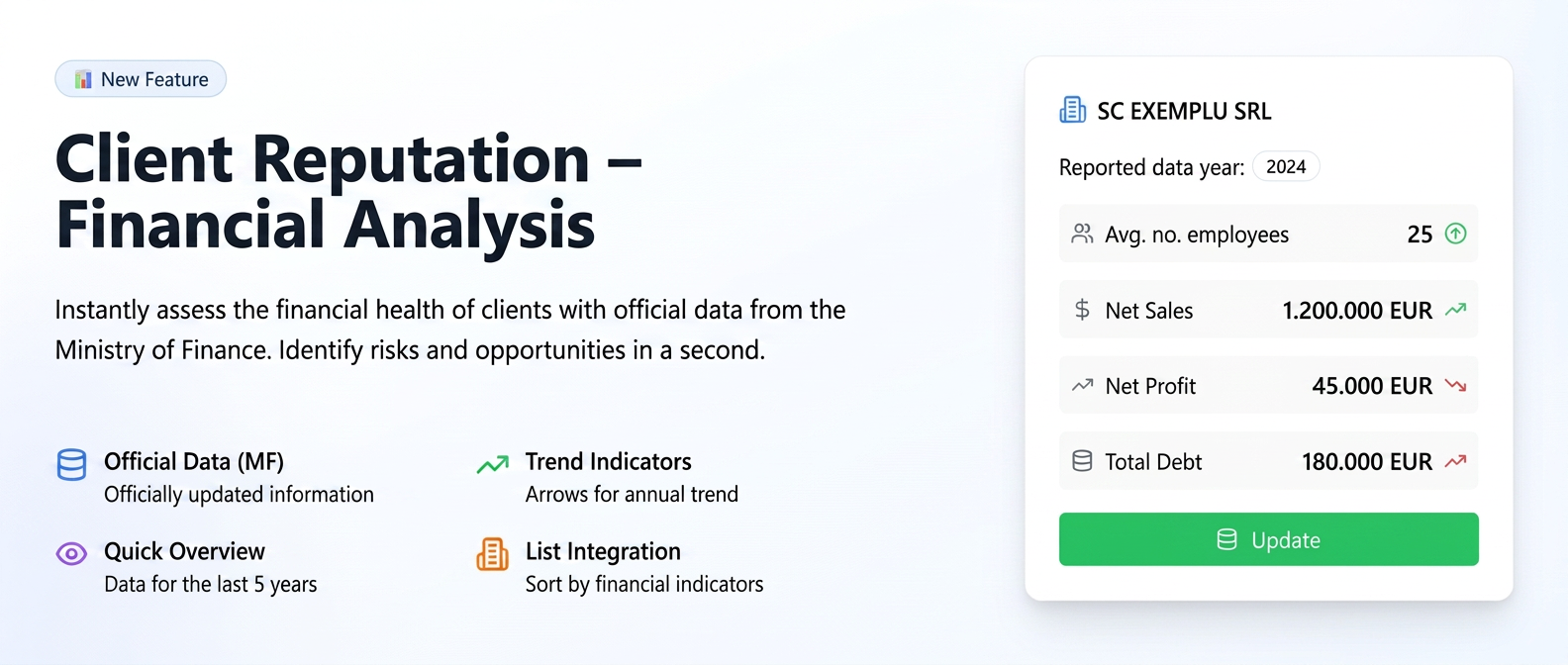
This feature was designed to provide you with valuable financial insights regarding your business-to-business clients. The "Reputation" tab automatically retrieves data directly from the Ministerul de Finanțe (Ministry of Finance), allowing you to quickly assess the financial health, risks, and opportunities associated with each business partner.
Part 1: Accessing the "Reputation" Section
To view a client's financial information, follow these steps:
- Navigate to the "Clients" section: From the main menu on the left side, select the Clients option.
- Select a Client: Identify the client of interest in the list.
- Access Client Details: Next to the desired client, in the "Actions" column, click the view button "Client Details" (the eye-shaped icon).
- Open the "Reputation" Tab: On the client details page, you will notice a series of tabs (Details, Account, Documents, etc.). Click on the new tab named Reputation.
Part 2: Exploring Information in the "Reputation" Tab
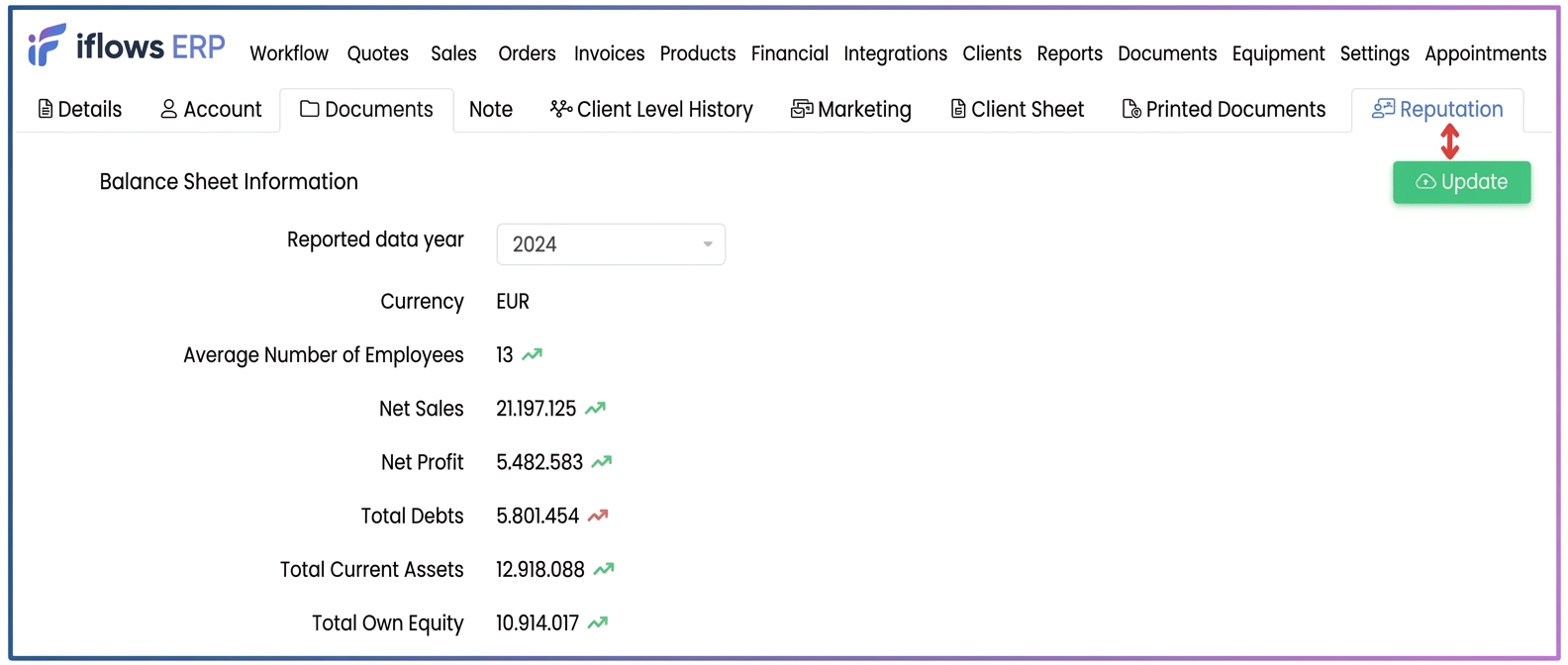
Once you have entered the "Reputation" tab, you will have access to a page with "Balance sheet information". Here you can find key financial indicators:
- Average number of employees
- Net turnover
- Net profit
- Total debts
- Total current assets
- Total equity
Key Functionalities in This Tab:
- Year Selection: You can view reported financial data for different years. Use the "Reported data year" dropdown menu to select the year of interest. The platform saves data for the last 5 years, depending on their availability.
- Trend Indicators (Arrows): Next to each value, you will notice a green arrow ( ascending ▲ ) or red arrow ( descending ▼ ). These indicate the trend of the current value compared to the previous year.
- Green Arrow (▲): The value has increased compared to the previous year.
- Red Arrow (▼): The value has decreased compared to the previous year.
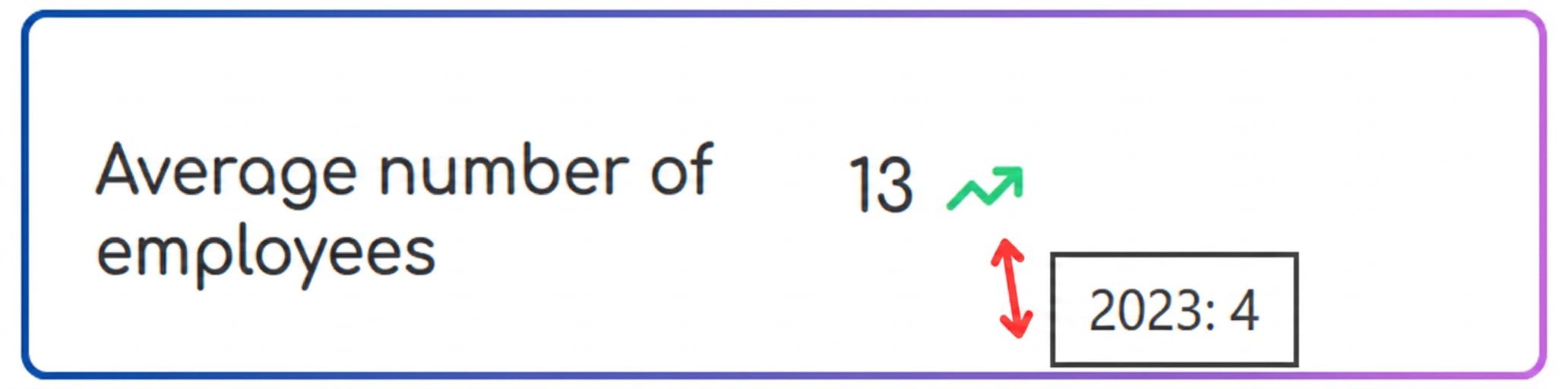
- Quick Comparison (Mouse-Over): To understand the context of the trend, hover your mouse cursor over the arrow. A small pop-up will appear showing you the exact value from the previous year. This allows for an immediate and efficient comparison.
- Data Update: If information is not yet displayed for a client or you want to ensure you have the latest data available, click the green "Update" button. The system will query the Ministerul de Finanțe database again.
Part 3: Integrating Financial Data into the Main Client List
For an even more efficient comparative analysis, you can add these financial indicators directly as columns in the main table of the "Clients" section.
- Return to the Client List: Navigate back to the main screen of the Clients section.
- Access Column Display Options: Next to the "Search" button, click the filter/options icon (the three horizontal lines).
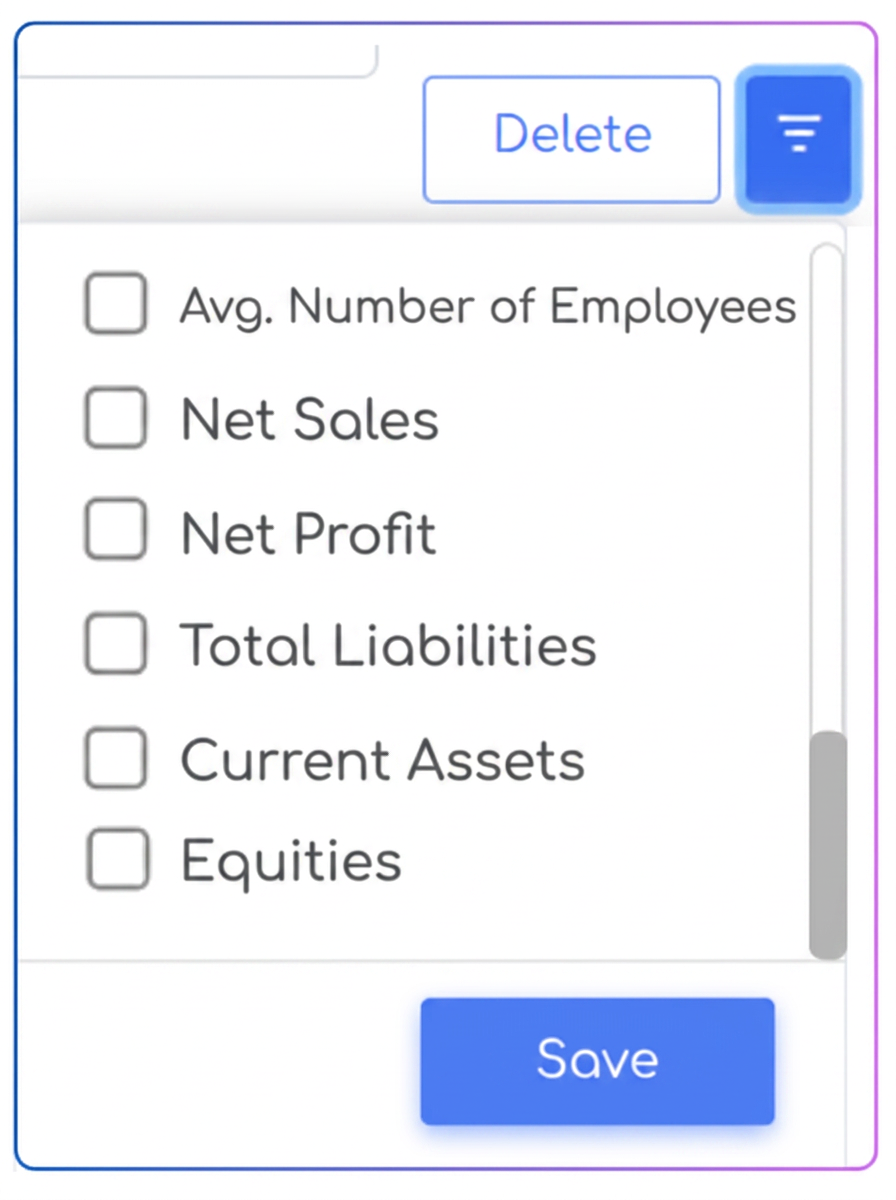
- Activate Financial Columns: In the menu that appears, scroll down and you will find the new indicators. Check the boxes corresponding to the data you wish to view in the table (e.g., Net Turnover, Net Profit, Total Debts, etc.).
- Save Changes: Press the "Save" button.
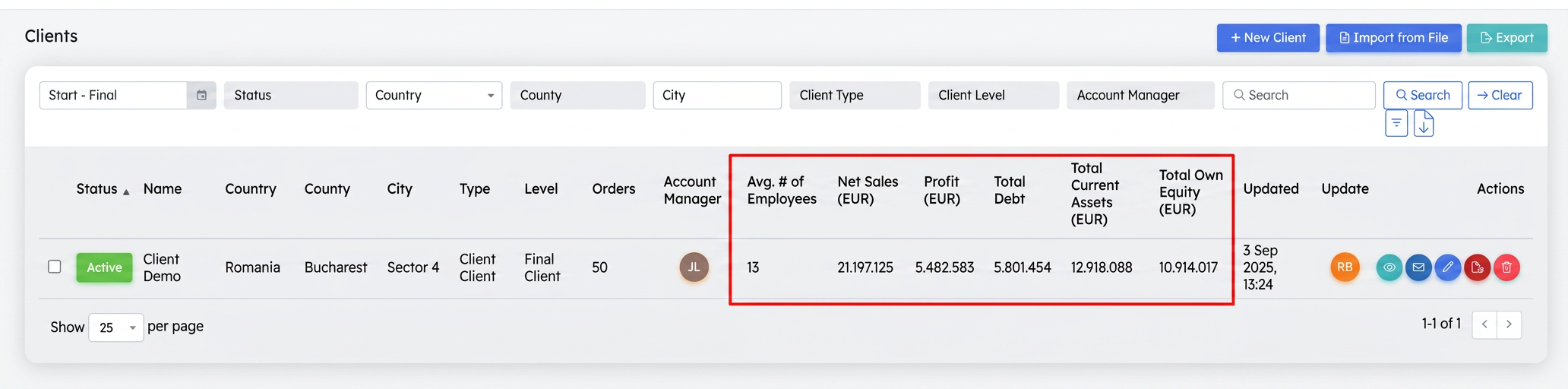
Result:
The selected columns will now appear in the main client list. This provides you with a major advantage:
- Instant Visibility: See key financial indicators for all clients at a single glance.
- Advanced Sorting: You can now sort the entire client list by clicking on the header of any new column. For example, a click on "Net turnover" will arrange clients in descending order of turnover, helping you instantly identify your most important clients.