
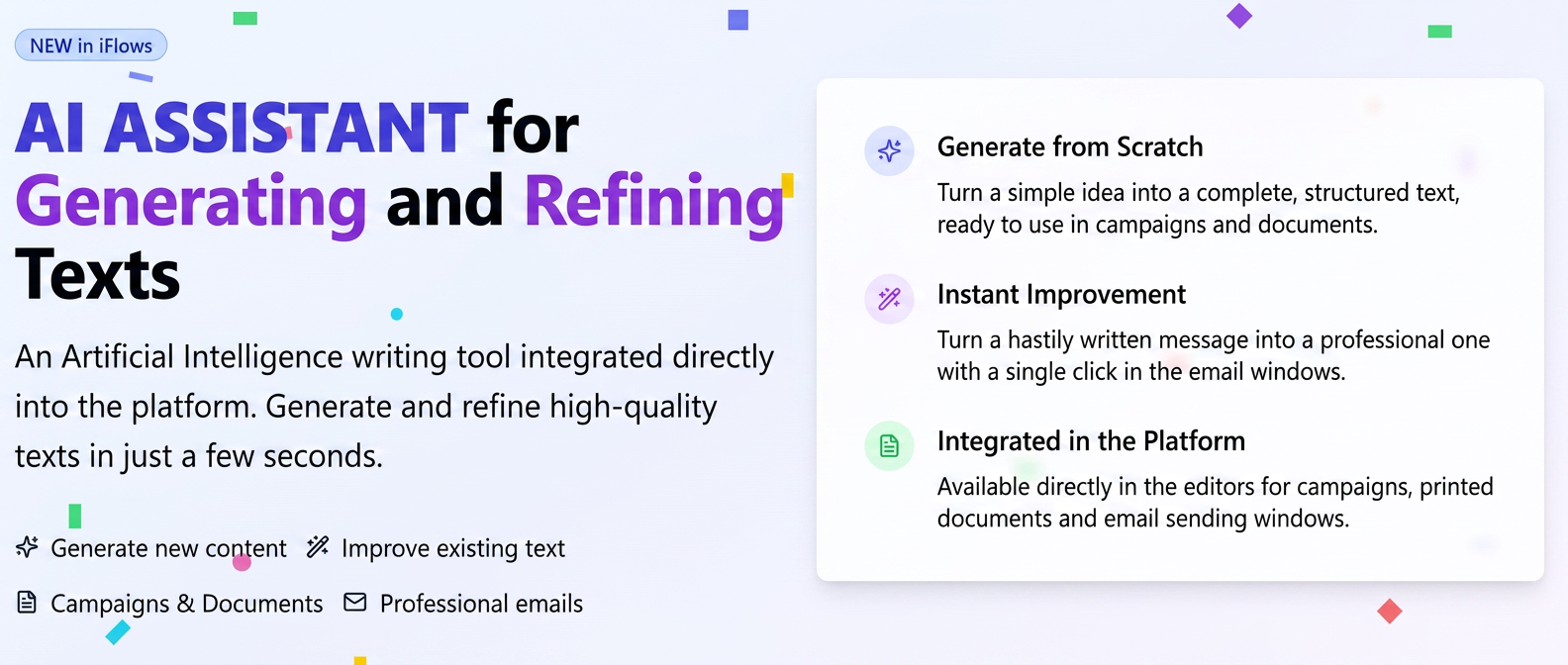
The AI Assistant is an integrated tool within the iFlows platform text editor, designed to help you create and perfect written content. It operates in two modes: generating new text based on your instructions and improving existing text.
Below you will find detailed instructions on how to use each feature.
1. How to Generate New Content from Scratch (✨ Generate new message)
This function allows you to transform an idea or a few keywords into a complete and structured text.
Where is the generation function available?
You can generate new texts in the following sections of the platform, where you need to compose elaborate content:
- Email Campaigns (in the campaign creation editor)
- Typed Documents (Documente Tipizate - standard document templates; when creating or editing a document template)
- Email Templates (in Settings -> Templates -> Email, when creating or editing a template)
Steps to generate a new text:
- Access one of the sections mentioned above and open the text editor.
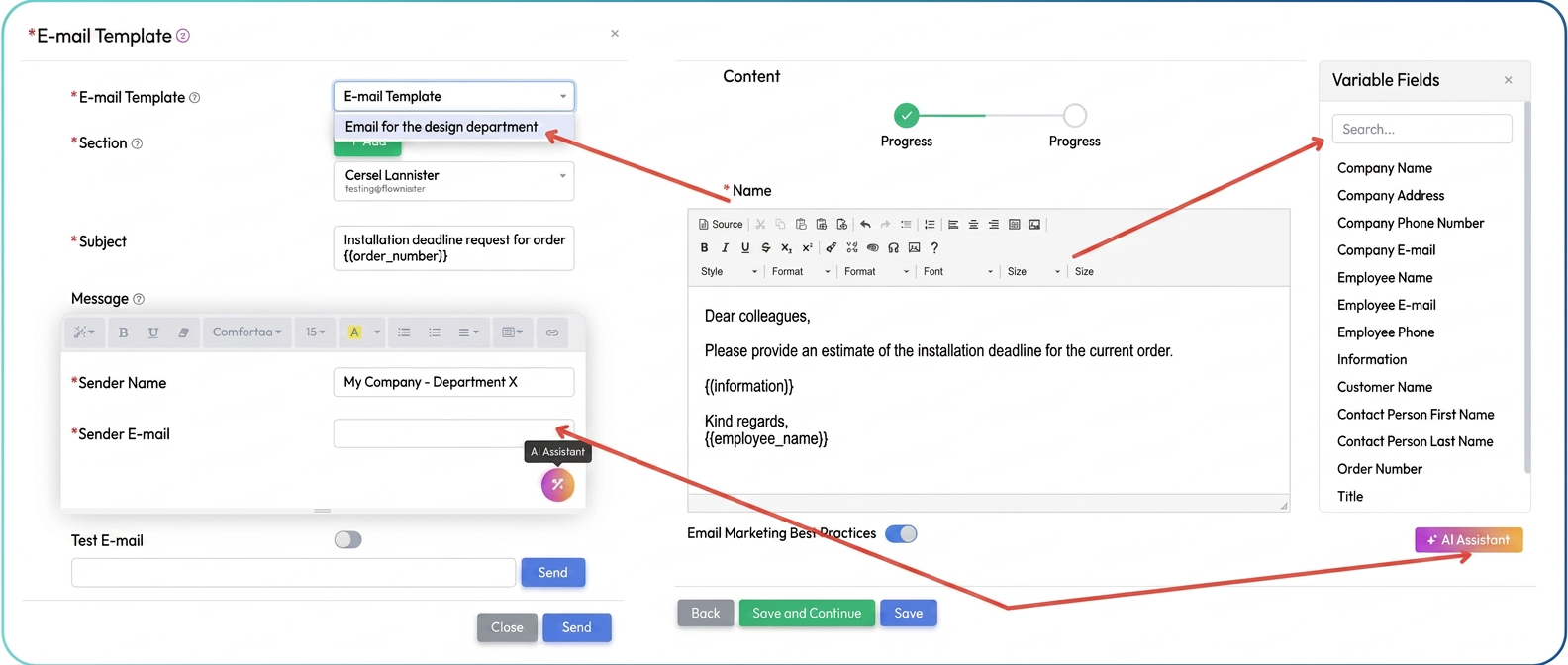
- In the bottom right part of the editor, click on the AI Assistant button.
- From the window that appears, select the Generate new message option.
- Fill in the form with the following information to guide the AI:
- Tone: Choose the desired communication style (e.g., Professional, Friendly, Formal, Persuasive).
- Description: Provide clear and specific instructions about the required content.
- Example 1 (marketing email): Announce an Easter promotion with a 15% discount on all products in category X, valid between May 1st and 10th.
- Example 2 (official document): Generate a standard text for a handover protocol (proces verbal de predare-primire) for a Dell XPS 15 laptop, to include equipment condition and delivered accessories.
- Click the Generate button.
- The AI Assistant will create a text proposal. Review it and, if it meets your needs, click Insert to add the text directly into the editor.
2. How to Improve an Existing Text ( Improve message with AI)
This function is ideal for quickly refining a text written in a hurry, correcting grammar, style, and tone errors to make it clearer and more professional.
Where is the improvement function available?
The improvement function is available in all iFlows text editors. However, there is an important distinction:
- In the quick Send Email windows (for example, from a quote page, invoice, etc.), this is the only AI option available.
- In the Campaigns, Typed Documents, and Email Templates sections, the improvement function is available alongside the generation one.
Steps to improve a text:
- Write the initial text (draft) directly in the body of the editor.
- Example: ”Hello, I have attached the requested offer. Waiting for a reply. Have a nice day”.
- Select the text you want to improve or simply leave the cursor in the text block.
- In the editor toolbar, click directly on the Improve message with AI icon.
- Wait a few seconds. Your text will be automatically replaced with a rewritten, more professional version that maintains the original meaning.
- Possible result for the example above: ”Hello, I have attached the offer you requested to this email. I am at your disposal for any questions and I look forward to your reply. Have an excellent day!”