
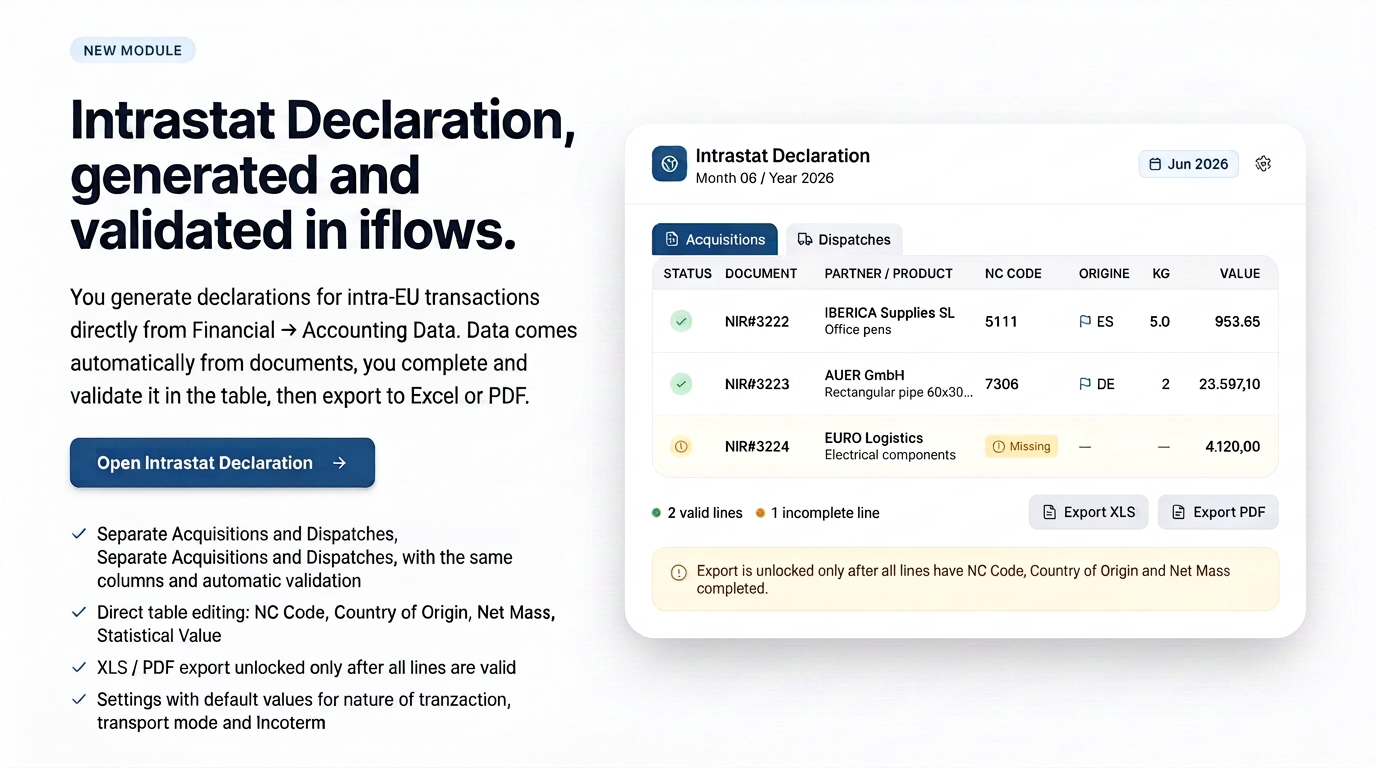
1. Overview
The Intrastat Declaration helps you generate and validate Intrastat declarations for intra-EU transactions (acquisitions and shipments of goods). Data is automatically pulled from documents, and you complete and correct it directly in the table, then export the declaration.
The page has two sub-sections — Acquisitions and Shipments — each with its own table and the same columns. Thus, you handle incoming and outgoing goods separately.
It is accessed from the Accounting Data section and produces the declaration in Excel (XLS) or PDF format.
2. How to access
From the main menu, open Finance, then Accounting Data. In the Standard section, look for the Intrastat Declaration card and press Open. To return to the reports list, use the Back arrow in the top left corner.
3. Generating the declaration
At the top, in the Filters and Generation area, choose the period and start the declaration. From here, you also switch between the Acquisitions and Shipments sub-sections.

Filters and generation area, with Acquisitions and Shipments sub-sections.
- Choose the Month and Year.
- Press Generate to bring the lines from the month's documents into the table.
- Check and complete missing fields directly in the table (the Validated column shows if the line is complete).
- Once all lines are valid, press Export XLS or Export PDF.
4. Completing the table
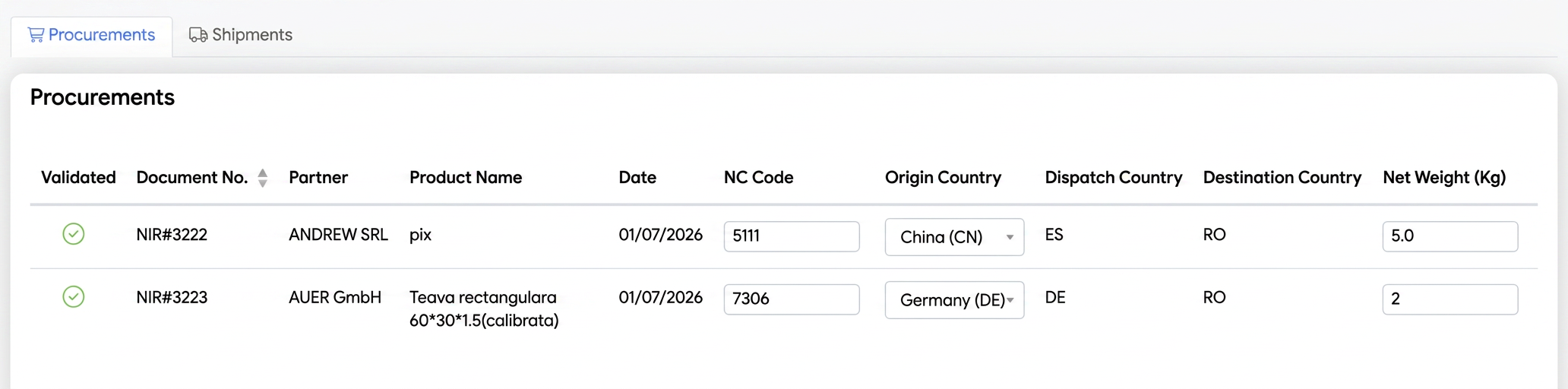

Table example, with valid lines
Each line corresponds to a product from a document and contains: Validated, document number, partner, product name, date, CN Code, Country of Origin, Country of Shipment, Country of Destination, Net Mass (Kg), Supplementary Unit, Invoiced Value, Statistical Value, Nature of Transaction, Mode of Transport, and Incoterm.
The following can be edited directly in the table (changes are saved automatically): CN Code, Country of Origin, Net Mass, Statistical Value, Nature of Transaction, Mode of Transport, and Incoterm. The rest of the columns are pulled from documents and cannot be modified here.
Important: A line is considered valid only if the CN Code (in correct format), Country of Origin, and Net Mass are completed. Incomplete fields are highlighted, and the export remains blocked as long as there are incomplete lines.
Important: When editing the CN Code, Country of Origin, or Net Mass, you have the option to save the value at the product level as well, so that it completes automatically for the same product in the future.
Important: The Statistical Value is automatically filled with the Invoiced Value. Exception: when the Incoterm is EXW or DDP, the field remains empty for manual entry.
5. Export
The declaration is downloaded in Excel (XLS) or PDF format using the Export XLS and Export PDF buttons. The file name includes the selected month and year. Export is only available after all lines are complete — if there are still missing fields (CN Code, Country of Origin, or Net Mass), the export buttons remain blocked.
6. Settings
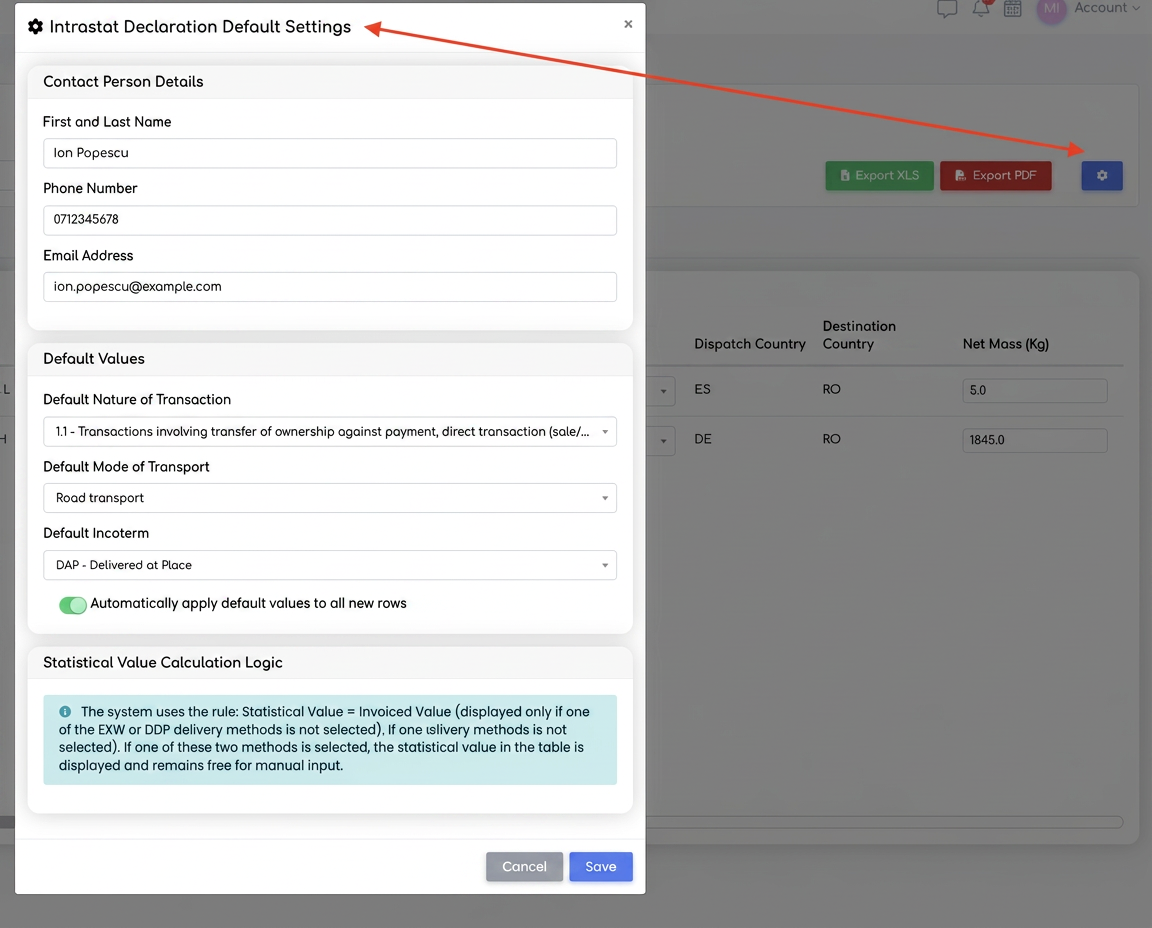
Intrastat settings window.
The Settings button (gear icon) opens a window with the contact person's data (first and last name, phone, email) and the default values for Nature of Transaction, Mode of Transport, and Incoterm. The checkbox "Automatically apply default values for all new rows" fills these values on newly imported lines, so you don't have to add them manually. You will also find an explanation of how the Statistical Value is calculated here. Press Save to keep the settings.