
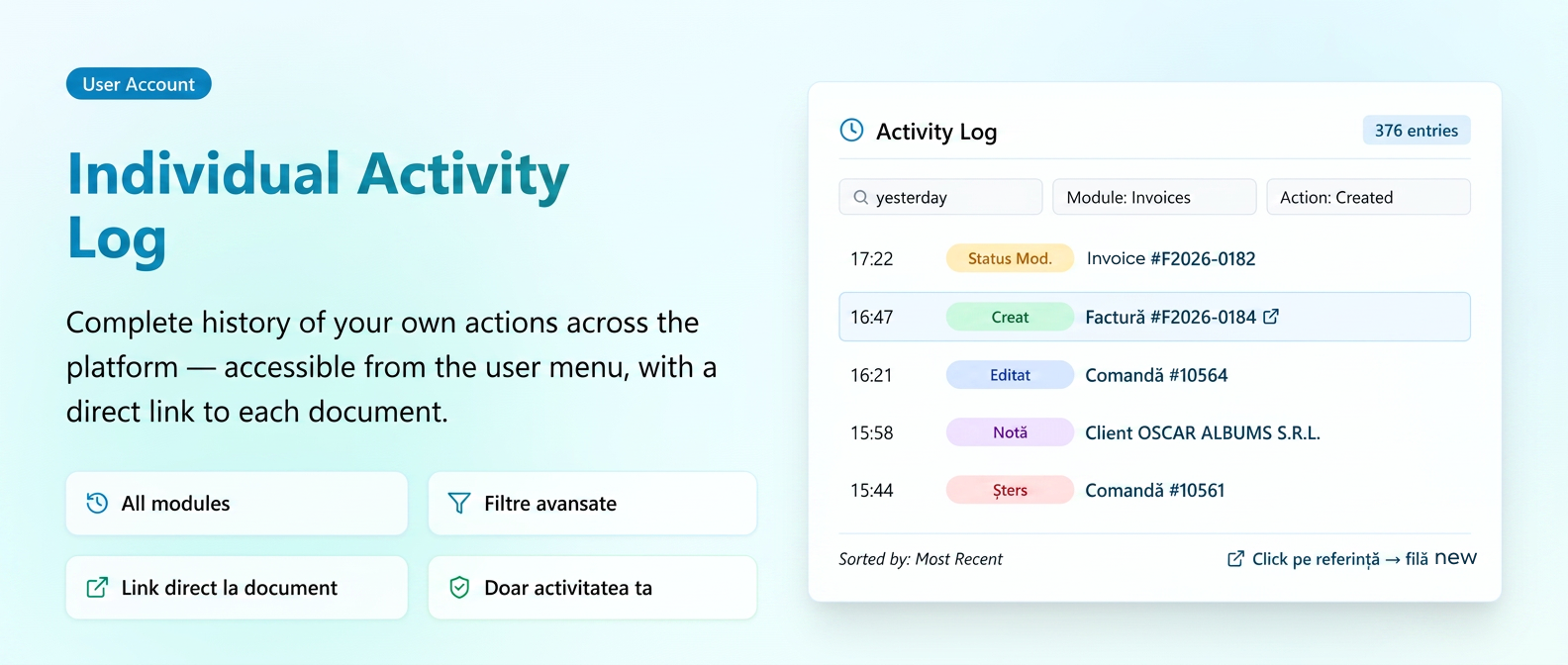
The Activity Log is a dedicated page that displays the complete history of actions performed by the user logged into the platform — documents created, edited, deleted, canceled, status changes, added tags, added notes. It is useful for tracking your own activity, quickly identifying recent documents, or checking actions performed within a specific interval. It is accessed from the user menu in the top-right corner of the platform, through the option with the clock icon Activity Log.
News and functionalities
- Full platform coverage — the log records activity from all modules — Orders, Quotes, Opportunities, Tasks, Invoices, Proformas, Notices, Receipts, Tax Receipts, NIR (Reception and Inspection Note), Transactions, Clients, Suppliers, Products, Equipment, Services, templates (Email, SMS, PDF), and many others.
- Types of recorded actions — Created, Edited, Deleted, Canceled, Status Changed, Tag Added, Tag Deleted, Note Added — each type appears with a distinct colored badge for quick identification.
- Exclusive personal history — each user sees only their own activity.
- Direct link to documents — each action in the list has the name of the document it refers to attached (e.g., "Order #10564", "DEMO Client"). Click on that name and the document opens immediately in a new tab, without searching for it through the modules.
- Advanced filtering — the list can be filtered by date range, module, action type, or through free text search. The search works simultaneously in the document name, the associated object, and the document number/ID — even by action type (e.g., searching for "created" filters only Created type actions).
- Automatic chronological sorting — entries are displayed from most recent to oldest.
How to use
- Click on the user menu in the top-right corner of the platform.
- Select Activity Log.
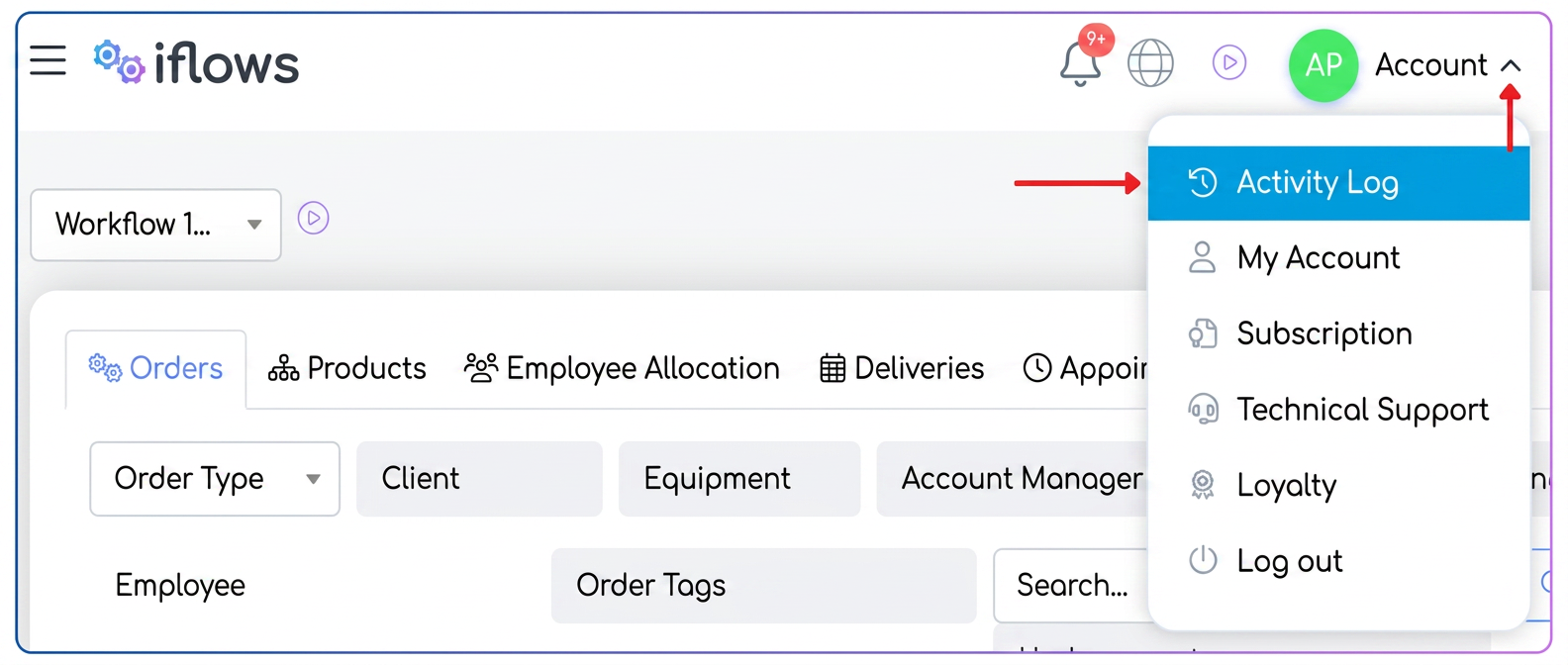
- Use the filters at the top to narrow down results by date range, module, action type, or text.
- Click on a document reference to open it directly in a new tab.
Practical example
A user issued an invoice yesterday for a client, but can no longer find the invoice number or the exact client. They want to quickly check what they did and find it again.
→ Open the Activity Log from the personal menu
→ Set the date range to "yesterday" and filter the Invoices module with the Created action
→ Immediately identify the issued invoice and click on the reference — the document opens in a new tab, ready for consultation